A tracking pixel is a tiny remote image in an email, often 1 × 1 pixel and the colour of the background. When your mail app loads it, the sender’s server learns that you opened the letter, when, and usually roughly where. On a Mac you can stop that, but the setting most people trust for it, Apple’s Mail Privacy Protection, doesn’t block pixels. It loads them.
The short version
- Apple Mail’s Protect Mail Activity downloads remote content, pixels included, through Apple’s relays. Senders still get a hit; they just can’t see your IP address or the real time you read it.
- To block pixels in Apple Mail, turn Protect Mail Activity off, then turn on Hide IP Address and Block All Remote Content. Update macOS first: until macOS 26.4 and 15.7.5, these settings missed some content.
- Gmail on the web and Outlook for Mac have their own image settings. They don’t carry over to a Mac mail app reading the same account.
- Blocking all images also hides the pictures you want. Blocking only trackers is a different, better trade-off, and few apps do it.
- Image settings don’t stop link tracking. Clicking a link in a marketing email still tells the sender.
What a pixel tells the sender
The pixel’s address is made for you. A newsletter sent to 10,000 people carries 10,000 different image links, so when one is fetched, the sender knows whose copy was opened. The BBC’s 2021 report lists what a sender can learn this way: whether and when you opened the email, how many times, on which device, and your rough location from your IP address.
Researchers at Princeton went further. In a 2018 study they found that many emails also pass your email address to third-party trackers inside those image links, and that some mail apps send cookies along, which lets an ad company tie your inbox to your web browsing. JavaScript is always stripped from email, but images and stylesheets load, so a tracker can also hide in a CSS background image rather than an <img> tag.
How common it is
The best peer-reviewed numbers are from 2017 and 2018 data, and I couldn’t find a newer study. They agree that it’s most marketing mail:
- Princeton (PoPETs 2018) collected 12,618 emails from 902 senders. 85% contained third-party content, and 70% contained resources that tracking-protection lists class as trackers. About 29% leaked the recipient’s email address to a third party when opened.
- A University of Delaware team (IEEE INFOCOM 2018) looked at 44,449 emails gathered over seven years and found up to 24.7% carried a tracking beacon; travel emails were near 58%.
- Hey, the email service, told the BBC in 2021 that two-thirds of emails sent to its users’ personal accounts had a pixel, not counting spam.
- Proton watched 50 large US retailers in November 2025 and found 80% put trackers in every marketing email they sent.
For one more data point: in my own mail, Roost found trackers in 339 of 526 HTML letters it had downloaded. That’s one person’s inbox, not a study, but it matches the pattern.
Apple Mail on a Mac
What Protect Mail Activity does
Apple introduced Mail Privacy Protection in 2021, and it’s now called Protect Mail Activity. Apple’s privacy page from December 2025 says it “downloads remote content in the background by default,” whether or not you open the letter, through two relays: one knows your IP address but not the content, the other knows the content but not your IP.
So the pixel still loads. The sender sees a fetch from Apple’s servers, usually around delivery time rather than when you read it, and can’t see your IP. That protects you from the time and place being exposed. It doesn’t remove the pixel, tell you one was there, or stop link tracking. It also only covers Apple’s Mail app and iCloud Mail on the web, not Gmail in a browser or other apps.
How to block remote content instead
- Open Mail and choose Mail › Settings, then click Privacy.
- Untick Protect Mail Activity.
- Tick Hide IP Address and Block All Remote Content, which appear once Protect Mail Activity is off.
Now no remote image loads until you ask. Mail shows a banner in each letter with remote content, and you load it for that letter when you want the pictures. Older Mac guides send you to Mail › Preferences › Viewing; that menu has been Settings › Privacy since macOS Ventura.
Gmail on the web
Since December 2013, Gmail loads every image through Google’s own proxy instead of from the sender. That keeps senders from setting cookies or learning about your computer from the image request. But Google’s own help page admits that “senders may know whether you’ve opened an email that has an image,” because the proxy fetches the image when you open the letter.
To stop that, go to Settings › See all settings › General › Images, choose “Ask before displaying external images,” and click Save Changes. Each letter then gets a “Display images below” link.
This only affects Gmail in a browser and Gmail’s own phone apps. If you read the same Gmail account in Apple Mail or another Mac app, that app’s settings decide what loads.
Outlook for Mac
New Outlook for Mac doesn’t download pictures from the internet by default. The setting is Outlook › Settings › Email › Reading › Download external images: Always, only from your contacts and safe senders, or Ask before downloading. Microsoft’s page notes that downloading them “can alert the sender that your email address is active.” Support for legacy Outlook for Mac ended in October 2026, so the old menus no longer matter.
Browser extensions for Gmail
Many guides still recommend Ugly Email. Its Chrome Web Store listing is gone as of November 2026; the Firefox version was last updated in March 2024. Two that are still listed and updated: PixelBlock (updated December 2025) and Trocker (updated July 2026), both for Gmail in Chrome. They only protect Gmail in that one browser, not the same account in a Mac app or on your phone. For Apple Mail there’s MailTrackerBlocker on the Mac App Store, though Apple Mail allows only one Message Security extension at a time.
Blocking images, or blocking trackers
Block All Remote Content is blunt. It stops the pixel and every real picture too: the product photo, the chart in a report, the logo in a receipt. So people learn to click “Load” on almost everything, and then the pixel loads with the pictures.
The better approach is to tell pixels apart from pictures. A pixel is usually 2 × 2 pixels or smaller, has zero size, or is hidden, or its address matches a known open-tracking service. A picture has a real size and something to see. An app can load the pictures and drop the pixels, so you never have to choose.
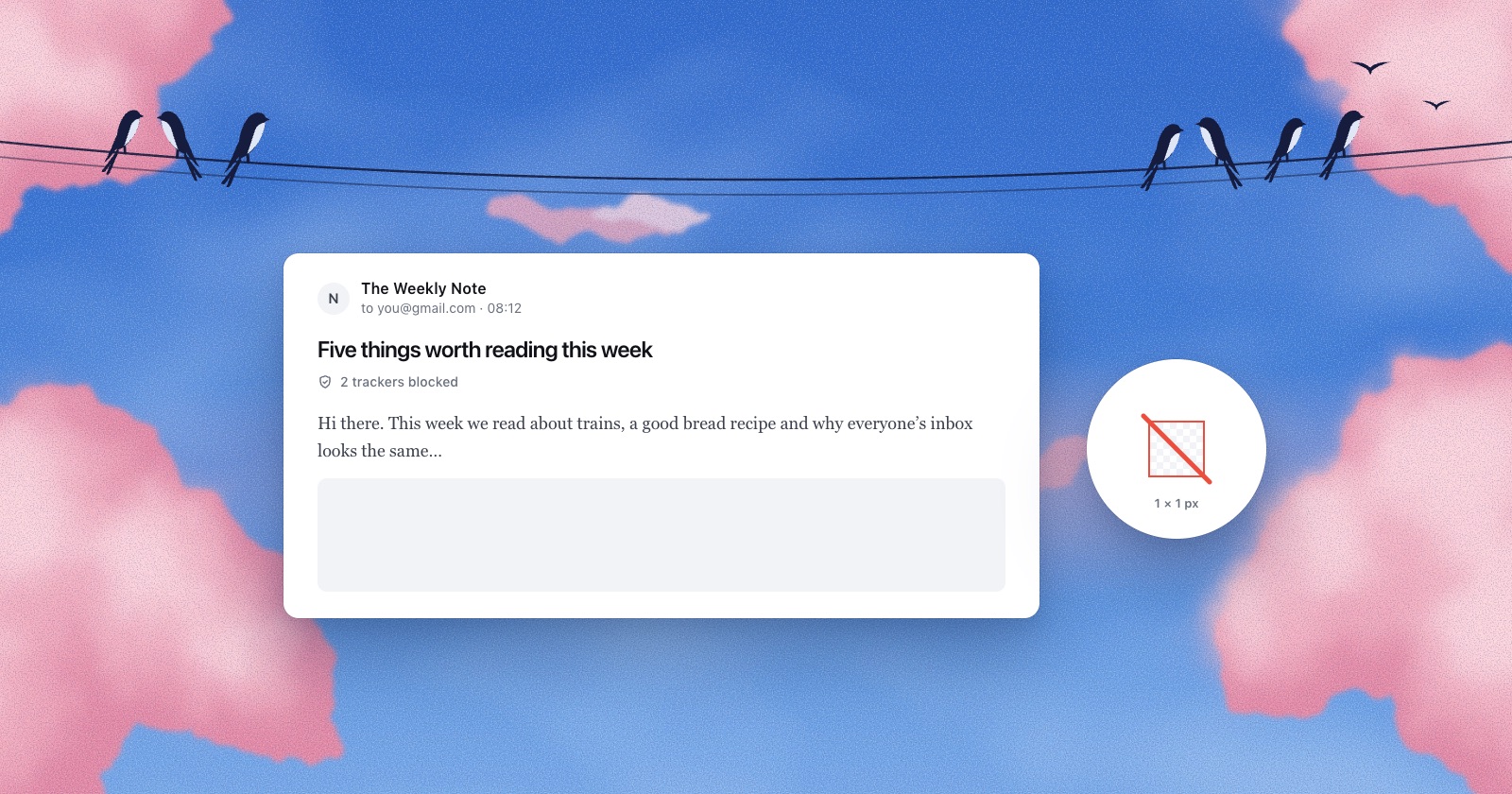
That’s how I built tracker blocking into Roost. Remote images stay off until you allow them (for one letter, or always for a sender), and trackers never load, even with images on. Each HTML letter says so in one quiet line: “2 trackers blocked,” with the companies’ names on hover, or “No trackers.” It catches pixels in <img> tags, CSS backgrounds and the background attribute that older newsletters use.

What image settings can’t stop
Link tracking. Marketing links usually go through the sender’s redirect server, which records the click and then sends you on. Princeton found 11% of links in its sample leaked the recipient’s address to a third party, and at least 35% of senders used such a link. Apple strips known tracking parameters from links in Mail and Messages since macOS Sonoma, but a redirect link carries its tracking in the address itself. If you don’t want a click recorded, open the sender’s site yourself instead of clicking.
Read receipts are different from pixels: a read receipt is a request your mail app shows you and you can refuse. A pixel never asks.
Is it legal?
In the EU, the data protection board’s 2024 guidance says the ePrivacy consent rule covers tracking pixels in email. France’s CNIL went further in a recommendation adopted on 12 March 2026: senders need consent for pixels, with narrow exceptions such as measuring deliverability for a service you asked for, and they had until 14 July 2026 to tell existing recipients. That puts the duty on senders, in some countries. Blocking in your mail app works everywhere, today.
Questions
Does Apple’s Mail Privacy Protection block tracking pixels?
No. Protect Mail Activity downloads remote content, including pixels, through Apple’s relays, so the sender still gets a request. It hides your IP address and the real time you opened the letter. To stop pixels from loading, turn it off and turn on Block All Remote Content.
How can I tell if an email is tracking me?
Most mail apps don’t say. If you block remote content, a banner shows that the letter has some, but not whether it’s a tracker. Some apps and extensions name the trackers in each letter.
Does blocking images stop email tracking?
It stops tracking pixels, because they are images. It doesn’t stop link tracking when you click a link in the email.
How do I stop Gmail from loading images?
In Gmail on the web, go to Settings › See all settings › General › Images, choose “Ask before displaying external images,” and save. This doesn’t affect Gmail read in a Mac mail app.
Is Block All Remote Content safe to turn on?
Yes. It only stops letters loading content from the internet until you allow it. Letters still arrive, and you can load images for any letter with one click.
Sources
- Apple, Mail Privacy Protection and privacy (December 2025) and Protect your privacy in Mail on Mac
- CVE-2026-20692, details; Apple security notes for macOS Tahoe 26.4
- Englehardt, Han and Narayanan, I never signed up for this! Privacy implications of email tracking, PoPETs 2018
- Xu, Hao, Sari and Wang, Privacy Risk Assessment on Email Tracking, IEEE INFOCOM 2018
- BBC News, Spy pixels in emails have become endemic, February 17, 2021
- Proton, Spam Watch 2025
- Google, Images now showing (2013) and Choose whether to show images
- Microsoft, Download pictures in Outlook for Mac
- EDPB, Guidelines 2/2023 on the technical scope of Art. 5(3) ePrivacy; CNIL, recommendation on email tracking pixels