You can’t delete the Mail app on a Mac. Mail is part of macOS: it sits on the sealed, read-only system volume with the rest of the system, and Apple says the Finder can’t delete apps your Mac requires, Mail among them. What you can do is keep it from opening, stop it fetching mail, and clear the mail it has stored, which is where the disk space goes.
The steps follow Apple’s guides as they read on 22 November 2026, written for macOS 27. Apple gives the same Mail steps for macOS Tahoe 26, and where an older macOS differs I say so. I make Roost, another Mac mail app; it comes in near the end.
The short version
- Mail can’t be deleted or uninstalled. It comes with macOS, and the Finder refuses to move it to the Trash.
- To stop using it, take it out of the Dock and make another app the default email reader. With its accounts turned off, it has nothing to fetch.
- The space is your mail. Storage settings count the app under macOS and your messages and attachments under Mail.
- To clear it, erase deleted and junk mail, set Download Attachments to Recent or None, and remove accounts you no longer read in Mail.
- On iCloud, IMAP and Exchange accounts, what you delete in Mail goes from the server too once the Trash is erased. Removing the account clears the Mac’s copy and leaves the server alone.
Why you can’t delete Mail
Since macOS Catalina, the system runs from a read-only volume of its own. Apple: “Your files and data are stored in another volume named Macintosh HD - Data. In the Finder, both volumes appear as Macintosh HD.” From macOS Big Sur on, that system volume is also sealed with Apple’s signature, which Apple’s Platform Security guide says helps “prevent tampering with any Apple software that’s part of the operating system.” Mail is exactly that.
Apple’s page on uninstalling apps names it: “You can’t use the Finder to delete apps that are required by your Mac. This includes many apps that are installed by macOS, such as Mail, Music, Books, Notes, Podcasts, Maps, News, and Stocks.” Drag Mail to the Trash and the Finder stops with a message that Mail can’t be modified or deleted because macOS needs it.
Storage settings draw the same line. Apple lists Mail as an example in the macOS category, where nothing can be selected or deleted, and counts your messages in a separate Mail category that “contains emails and attachments.” The big number next to Mail is your mail, and deleting the app wouldn’t touch it.
A few of the pages ranking for this search tell you to switch off System Integrity Protection and delete Mail from Recovery. I wouldn’t. Getting Mail off a sealed, read-only volume means turning those protections off, and Apple’s security guide says that with the signed volume off, “the system at rest becomes vulnerable to tampering.” It wouldn’t free the space you’re after either.
Keep Mail from opening
- Drag Mail’s icon out of the Dock until Remove appears. Apple notes that “Only the alias is removed; the actual item remains on your Mac.”
- Check Apple menu › System Settings › General › Login Items & Extensions (Login Items in macOS Sonoma 14). If Mail is listed, select it and click the minus button. If Mail only reopens because it was open at shutdown, untick “Reopen windows when logging back in” in the Shut Down dialog.
- Mail opens when you click an email address because it’s the default email reader. Pick another app in Mail › Settings › General › Default email reader, or see how to change the default mail app on a Mac.
- To stop Mail checking an account, untick “Enable this account” in Mail › Settings › Accounts, or remove the account. Both are in how to sign out of Mail on a Mac.
- To quit it, choose Mail › Quit Mail or press ⌘ Q. If it hangs, ⌥ ⌘ Esc opens Force Quit.
See how much space Mail uses
Choose Apple menu › System Settings › General › Storage (in macOS Monterey 12 and earlier, About This Mac › Storage). The Mail row is your messages and attachments, and Apple says it updates as you free space.
For the folder, hold Option in the Finder, choose Go › Library, select Mail and press ⌘ I for Get Info. Inside Mail, View › Sort By › Size puts the biggest messages first. Apple’s macOS 27 guide adds a tip: Control-click an inbox and choose Get Account Info to see the account’s storage capacity and how much each mailbox uses.
Where Mail keeps your mail
| What | Where | Delete by hand? |
|---|---|---|
| Messages, mailboxes and Mail’s index | ~/Library/Mail, in a folder named V10 on macOS 13 through 27 | No. Delete mail from inside Mail. |
| Attachments you opened (Mail Downloads) | ~/Library/Containers/com.apple.mail/Data/Library/Mail Downloads | Unedited files only, with Mail quit |
| Attachments you saved | Your Downloads folder, or the one set in Mail › Settings › General | They’re your files |
| The Mail app | The read-only system volume | You can’t |
To open a path, choose Go › Go to Folder in the Finder and paste it. Inside Containers the Finder can show several folders named Mail; the path goes straight to the right one. Apple’s guide only says Mail Downloads is “in the Library folder of your home folder”; the full path is the one Mac users report in a TidBITS Talk thread, and the V10 name comes from C-Command’s SpamSieve manual.
Watch the attachments you edited. Open one from a message, change it and save, and the changed copy can stay in Mail Downloads, maybe as the only copy with your edits. Look before you delete there. And if a fix sends you into ~/Library/Mail (the Envelope Index fix for broken search does), quit Mail first and copy what you touch.
Clear Mail storage, in a safe order
- Back up first. Apple says a Time Machine backup can restore what Mail downloaded.
- Erase what you already deleted: Mailbox › Erase Deleted Items (one account or all), then Mailbox › Erase Junk Mail (⌥ ⌘ J). Those two are all the Mail advice in Apple’s free-up-space article.
- Make that automatic. In Mail › Settings › Accounts › Mailbox Behaviors, set “Erase deleted messages” and “Erase junk messages” to anything but Never, for each account.
- Download fewer attachments. In Mail › Settings › Accounts › Account Information, set Download Attachments to Recent (the past 15 months) or None. The catch, in Apple’s words: Mail “always downloads media attachments (such as image, PDF, video, or audio files),” so this covers the rest, like spreadsheets and zip files. Optimize Storage in Storage settings also keeps “only recent email attachments on this Mac when storage space is needed,” though it removes Apple TV movies and shows you’ve watched as well.
- Clear opened attachments. Set “Remove unedited downloads” in Mail › Settings › General; by default Apple says an attachment you haven’t edited or saved goes when its message does. For older files, quit Mail, open Mail Downloads and trash what you don’t need, keeping anything you edited.
- Delete big messages you don’t need, sorted by size. On iCloud, IMAP and Exchange accounts Mail mirrors the server, so this frees space there too once the Trash is erased. With Gmail, deleting from a label can leave the letter in All Mail (why).
- Remove accounts you no longer read in Mail. It’s the one way to drop the Mac’s copy and keep the mail: Apple says the messages leave your Mac and “Copies of messages remain on the account’s mail server.” POP accounts can delete mail from the server after downloading it, so if Mail might hold the only copy, use Mailbox › Export Mailbox and keep the .mbox files on a drive first.
- Empty the Finder’s Trash.
Leave Message › Remove Attachments for when you mean it. It keeps the message and strips its files, and Apple warns that on IMAP accounts the attachments “are deleted from the mail server and can’t be retrieved.”
Why the space doesn’t come back after you delete mail
- It’s still in Trash or Junk. Apple: deleted messages “are available until they’re permanently erased.”
- Your Trash Mailbox (in Mailbox Behaviors) may be an On My Mac one, and those keep messages on this Mac only.
- Mail you moved to On My Mac mailboxes stays, even when you remove an account. Apple suggests copying mail there before removing one for exactly that reason.
- Attachments you saved or edited stay put. Apple: “Mail doesn’t delete attachments that you have saved.”
- Mail’s copy is out of step with the server. Select the mailbox and choose Mailbox › Rebuild: for IMAP and Exchange accounts, Apple says the copies on your Mac “are discarded, and then downloaded again from the mail server.” The mailbox looks empty until it finishes.
Can you reinstall Mail?
Not on its own, and there’s no separate download. Mail is one of the apps Apple calls “installed by macOS,” so it comes back with macOS: a macOS update, or a reinstall from macOS Recovery. Apple says reinstalling macOS “doesn’t remove your apps or personal data,” and still suggests a backup first. For a misbehaving Mail, try the smaller fixes before that: rebuild the mailbox, or remove the account and add it again.
If you’re switching mail apps
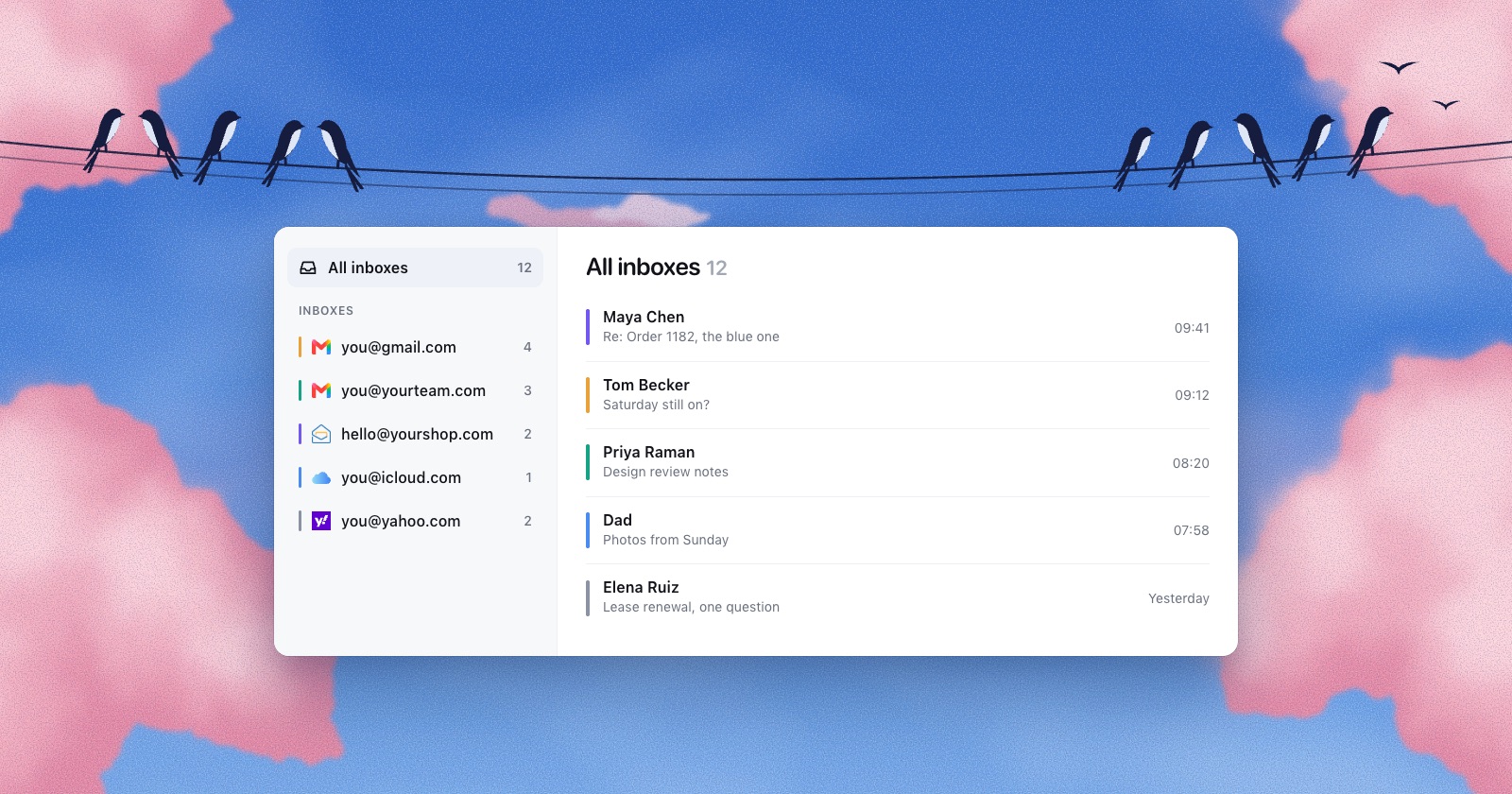
If you’ve moved to another mail app, Roost or any other, Mail can stay where it is. Once its accounts are off and the other app is the default email reader, it sits unused with nothing to fetch. If you’re still choosing, I compared the main Apple Mail alternatives.
Roost is the one I make: one window for several inboxes, on macOS 15 or later. It keeps your mail in ~/Library/Application Support/Roost/ and the passwords in your login Keychain, with no Roost server in between (where your mail goes). Remove Inbox… in Settings deletes Roost’s copy of that inbox’s mail, its saved drafts, the attachment copies you opened and the saved password, and changes nothing on the server. Unlike Mail, Roost is an ordinary app you can drag to the Trash. Remove your inboxes first, so the mail it saved and the Keychain passwords go too.
Questions
Can I delete the Mail app on my Mac?
No. Mail is part of macOS and sits on the read-only system volume, and Apple says the Finder can’t delete apps your Mac requires. Take it out of the Dock and change the default email reader instead.
How do I quit the Mail app on my Mac?
Choose Mail › Quit Mail, or press Command-Q. If Mail doesn’t respond, press Option-Command-Esc, select Mail and click Force Quit.
How do I delete apps on a Mac that won’t delete?
Apps that come with macOS, like Mail, Music or Notes, can’t be deleted. For other apps, Apple says to make sure the app isn’t open, then restart or start up in Safe Mode and try again. Apps not made by Apple may come with an uninstaller.
How do I stop Mail from taking up storage on a Mac?
Set Download Attachments to Recent or None, set “Erase deleted messages” and “Erase junk messages” to anything but Never, keep “Remove unedited downloads” on, and remove accounts you don’t read in Mail.
Why won’t Mail delete on my Mac?
The app is part of macOS, so the Finder refuses. If messages come back after you delete them, check the Trash Mailbox setting under Mailbox Behaviors, then select the mailbox and choose Mailbox › Rebuild, which downloads it again from the server.
Why does Mail take so much storage on a Mac?
Mail keeps copies of your accounts’ messages and attachments on the Mac, plus the attachments you opened. Apple says it always downloads media attachments such as images, PDFs and videos, whatever the Download Attachments setting.
Why is my Mail storage full after deleting everything?
Deleted mail stays in Trash and Junk until you erase it, and On My Mac mailboxes and saved attachments stay too. Choose Mailbox › Erase Deleted Items and Mailbox › Erase Junk Mail, then empty the Finder’s Trash.
Can I clear Mail’s storage without deleting my email from the server?
Yes. Remove the account from Mail instead of deleting messages: Apple says its messages leave the Mac and the copies stay on the mail server. Check POP accounts first, since they may not keep one.
Sources
- Apple, Delete or uninstall apps on Mac, published 8 June 2026, read 22 November 2026.
- Apple Platform Security, Signed system volume security, read 22 November 2026.
- Apple, About the read-only system volume in macOS Catalina or later (archived by Apple), read 22 November 2026.
- Apple, Mac User Guide (macOS 27): Change Storage settings, Optimize storage space, Use the Dock, Open items automatically when you log in (and its macOS Sonoma 14 version), Shut down or restart your Mac, Get file, folder, and disk information, read 22 November 2026.
- Apple, Free up storage space on Mac, published 16 October 2026, read 22 November 2026.
- Apple, Mail User Guide (macOS 27; the macOS Tahoe 26 pages give the same steps, without the Get Account Info tip): Delete emails and manage storage, General settings, Account Information settings, Mailbox Behaviors settings, View, save, or delete email attachments, Import or export mailboxes, Add and manage email accounts, Keyboard shortcuts, read 22 November 2026.
- Apple, Rebuild mailboxes in Mail on Mac (Mail User Guide, macOS Sequoia 15) and If you can’t see email messages in Mail on Mac, published 15 July 2026, read 22 November 2026.
- Apple, How to force an app to quit on Mac, How to reinstall macOS and Back up your Mac with Time Machine, read 22 November 2026.
- C-Command, SpamSieve Manual: How can I rebuild Apple Mail’s database? (Mail folder names by macOS version), read 22 November 2026.
- TidBITS Talk, Don’t let Mail attachments accumulate and waste space (from December 2022), read 22 November 2026.