If you answer the same question twenty times a month, you end up with a text file of answers and a lot of copying and pasting. Every mail setup on a Mac has some way around that, and they are all a little different. Here is what Apple Mail, Gmail on the web, Outlook for Mac and Roost actually give you, from each one’s own help pages, checked on November 5, 2026.
I make Roost, so the last section is about my own app. The others are described from Apple’s, Google’s and Microsoft’s pages, with the steps as they write them.
The short version
- Apple Mail has no templates. Apple’s Mail guide has no page on them, and the old Stationery went away with macOS Mojave in 2018. People save a draft in a mailbox and copy it, or use macOS’s Text Replacements for short lines.
- Gmail has templates on the web, turned off by default. You switch them on under Settings › Advanced, and Google says you can only use them from a computer.
- Outlook for Mac has two: File › Save As Template, which needs a Microsoft 365 subscription, and the My Templates add-in, which needs an Exchange account.
- Roost keeps templates under short names. You type
;and a few letters in any letter, the template shows in grey, and Tab puts it in with the person’s first name filled in. - None of these carries over to the others. A Gmail template lives in Gmail on the web, not in a Mac app reading the same account.
Apple Mail
Apple’s Mail User Guide for macOS has sections for writing, signatures and attachments, and nothing about templates. The feature people remember, Stationery, was removed in macOS Mojave in 2018, and Apple never said why. An Apple Community thread from that autumn is still where people land when they look for it.
The common workaround is to write the letter once, save it as a draft, and move the draft into a mailbox of its own. When you need it, you open it, change the name, and send. Mail then files that copy in Sent and your original is gone, so people keep a second copy or forward the saved letter to themselves. It works. It is also five clicks and a bit of care every time.
Signatures are the other trick. Mail lets you make several signatures per account and pick one from a menu in the compose window, so a long signature can carry a whole reply. It can’t greet the person by name, and the menu holds every signature you have, so it gets crowded.
macOS Text Replacements, in any app
This is the one Apple does document, and it works in Apple Mail, Roost, Safari and most Mac apps. Open System Settings, click Keyboard, then Text Replacements. Click Add, type the short form on the left and the full text on the right. From then on, typing the short form in an app that supports it swaps in the long one.
Two limits, both from Apple’s page. “Text replacements, smart quotes and dashes, and smart links aren’t available in all apps,” and the field is built for a line or a sentence rather than a letter with paragraphs. Apple has a separate page on keeping your replacements the same on all your Apple devices.
Gmail on the web
Gmail’s templates are off until you turn them on. Google’s steps: on a computer, open Gmail, click Settings (the gear), then See all settings, then the Advanced tab. Next to Templates click Enable, then Save Changes at the bottom.
To make one, click Compose and write the text. At the bottom of the compose window click More options, then Templates, then Save draft as template, then Save as new template. To use one, click Compose, then More options, Templates, and pick it under Insert template. The same menu has Delete template, and Google warns that “after you delete a template, you can’t recover it.”
Two things from Google’s page worth knowing before you build your life on them. “You can only turn on and use message templates from Gmail on your computer,” so nothing in the phone apps. And the page gives no maximum number of templates; third-party guides say 50, but Google doesn’t. Templates can also go out on their own: make a filter, tick Send template, and Gmail answers matching mail with it.
Outlook for Mac
Microsoft’s page, “Can I create email templates in Outlook for Mac?”, gives two ways.
The built-in one saves a whole message. Select a message, choose File › Save As Template, give it a name, optionally a tag, and a place to save it. The file ends in .emltpl. To use it, choose File › New › Mail From Template, open the file, add recipients and send. Microsoft lists the requirements as Microsoft 365 subscribers and Outlook for Mac version 15.35 or later.
The second is the My Templates add-in. Click New Mail, then My Templates in the ribbon, then +Template, give it a title and the text, and save. Microsoft says the add-in “is available for Microsoft Exchange accounts,” and not in shared mailboxes. If you don’t see it, “your organization may have add-ins turned off.” The page states no limit on the number of templates and says nothing about attachments.
Roost
Roost’s templates came out in version 1.1 on November 5, 2026. The idea is that a template should be as quick as a keyboard shortcut and as safe as a draft: you see the whole thing before it goes in.
Make one
Open Settings (⌘,) and click Templates, then Add Template. Give it a short name, because the name is what you’ll type, then write the letter under it. Bold, links and lists work as they do in a signature. If you write {first name}, Roost fills it in from the person the letter goes to.

Use one
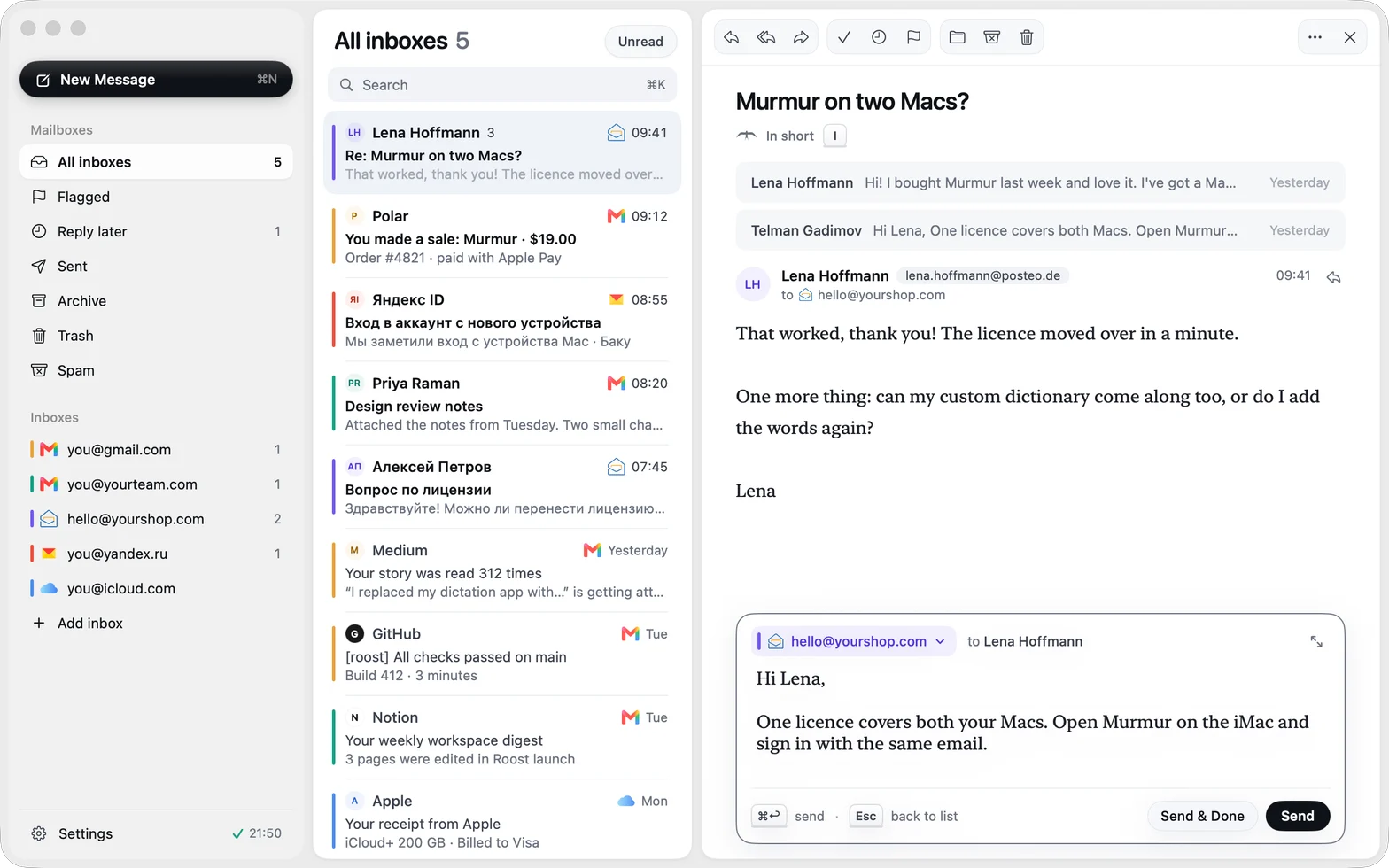
In any letter, a reply under a conversation or a new message, type a semicolon and the first letters of the name: ;lic. Roost finishes the name in grey, shows the whole template in grey beneath it, and names it in the footer with the key to press.
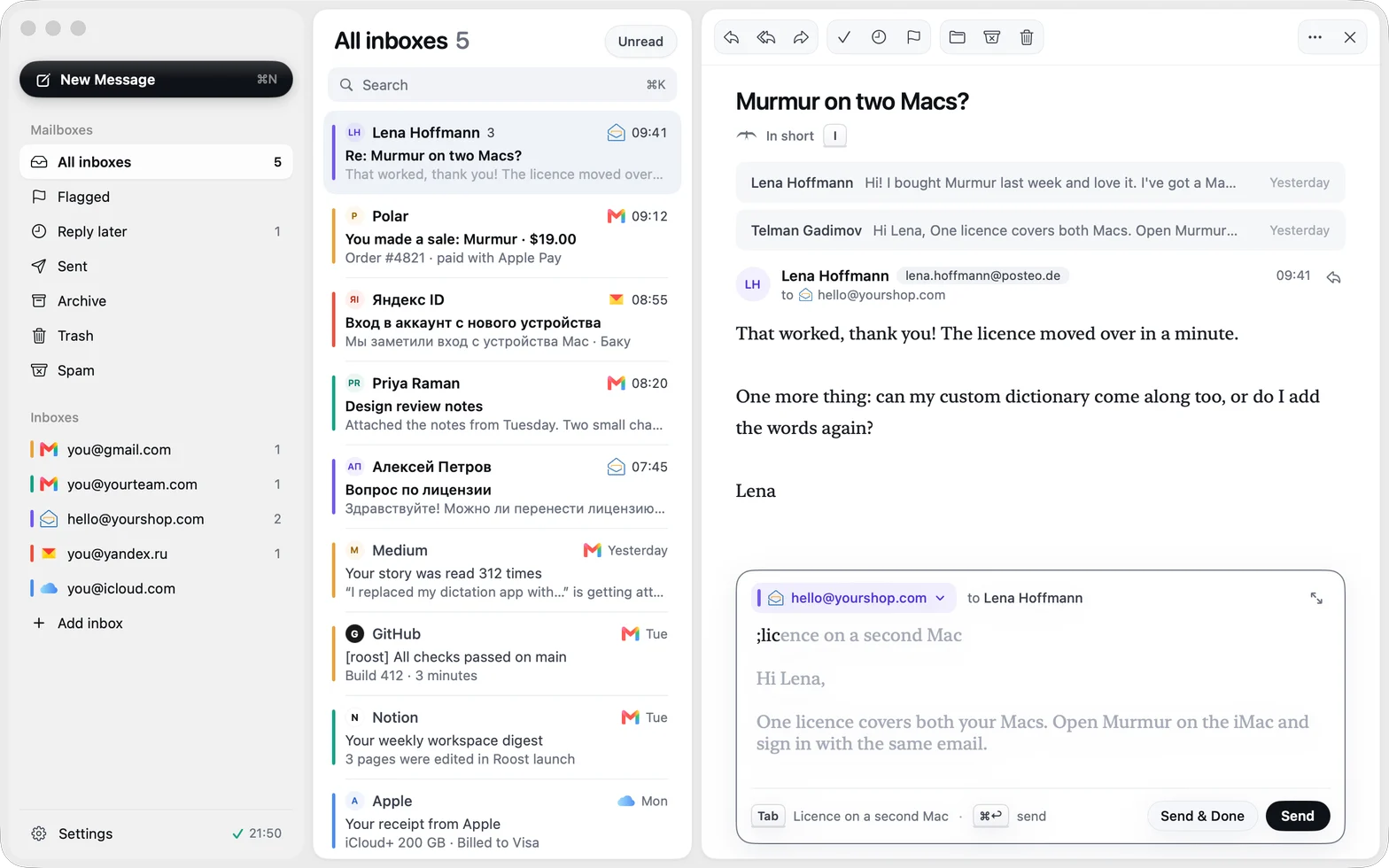
Press Tab and it becomes your words, with the name filled in. Change what you like and send. ⌘Z takes the whole template back in one step and gives you your ;lic again. Esc hides the grey text if you meant to type a semicolon.
The details
- The semicolon has to start a word, so
see;belowand semicolons inside sentences do nothing. Quoted lines never trigger. - Your letters can match the start of the name or any word in it.
;macalso finds “Licence on a second Mac.” When two fit, Roost picks the one you’ve used more. - The first name comes from the To field’s display name, else from what Roost knows about that address from your mail, else from the letter you’re replying to. If there’s no name anywhere,
{first name}is left selected for you to type over. - Until you press Tab, nothing is in the letter. Roost saves drafts to your mail server as you write, and a draft saved while the grey text showed doesn’t carry it.

What Roost’s templates don’t do
They are text, so no subject line and no attachments. They live on your Mac and aren’t synced anywhere, which is the same place your mail and passwords live. There is no import from Gmail; you paste each one in. And the one-line reply field in the notch doesn’t offer them.
Questions
Does Apple Mail have email templates?
No. Apple’s Mail User Guide for macOS has no templates feature, and Stationery was removed in macOS Mojave in 2018. Most people save a draft in a dedicated mailbox and copy it, or use several signatures. macOS Text Replacements work in Mail for short phrases.
How do I turn on templates in Gmail?
On a computer, open Gmail’s Settings, click See all settings, then the Advanced tab. Next to Templates click Enable and then Save Changes. Templates then appear under More options › Templates at the bottom of the compose window.
Do Gmail templates work on the phone?
Google’s help page says you can only turn on and use message templates from Gmail on your computer.
How do I make a template in Outlook for Mac?
Select a message and choose File › Save As Template, then use it with File › New › Mail From Template. This needs a Microsoft 365 subscription and Outlook for Mac 15.35 or later. The My Templates add-in is the other way, for Exchange accounts.
How do templates work in Roost?
Add them in Settings › Templates with a short name. In any letter, type a semicolon and a few letters of the name; the template shows in grey, and Tab puts it in. Write {first name} in a template and Roost fills in the first name of the person you’re writing to.
Sources
- Apple, Mail User Guide for Mac (no templates topic) and Replace text and punctuation in documents on Mac
- Apple Community, Mojave Mail stationery missing (2018)
- Google, Create a template in Gmail
- Microsoft, Can I create email templates in Outlook for Mac?
- Roost, changelog, version 1.1