 Roost
FeaturesInbox
Snooze an email on a Mac
Apple Mail's Remind Me and its four times, and Roost's Reply later, where you type when you want a conversation back.
Yes, you can snooze an email in Apple Mail on a Mac. Apple calls it Remind Me. Select the message, swipe right with two fingers on the trackpad (or Control-click it), click Remind Me and pick a time. At that time it comes back to the top of your inbox with a notification. That's Apple's Mail guide for macOS 27, read on 19 November 2026. Below: the exact choices, and Reply later in Roost.
In short
- Apple Mail offers four times: in 1 hour, tonight at 9:00 p.m., tomorrow at 8:00 a.m., or a date and time you choose.
- Reminded letters come back to the top of the inbox with a notification, and wait in a Remind Me mailbox in the sidebar.
- In Roost, press H on a conversation and type when you want it back ("fri 3pm", "in 2 hours"), or press a number for a preset.
- Roost's Reply later is kept on your Mac. The letter stays where it is on the server, so your phone still shows it.
Remind Me in Apple Mail
Apple's steps, from the "Manage notifications" page:
- In Mail, select the message.
- Swipe right with two fingers on your trackpad or Magic Mouse, then click Remind Me. You can also Control-click the message.
- Choose a time.
| Choice | When it comes back |
|---|---|
| Remind Me in 1 Hour | One hour from now |
| Remind Me Tonight | 9:00 p.m., local time |
| Remind Me Tomorrow | 8:00 a.m. the next day, local time |
| Remind Me Later | A date and time you pick |
When the time comes, Apple says "you receive a notification for emails you've set reminders for, and they move to the top of your inbox. They also appear in the Remind Me mailbox in the sidebar."
Apple's page stops there: it doesn't say how to change a reminder or whether one set on the Mac shows on your iPhone.
Mail has a second, automatic kind of reminder for your own letters. With Follow Up Suggestions on (Mail › Settings › General), a letter you sent that gets no answer in 3 days rises back to the top of the inbox. Swipe left on it to dismiss the suggestion.
In Roost: Reply later
Select a conversation and press H, or click the clock in the toolbar over the letter. A small picker opens with the keyboard already in a field at the top.

Type when you want it back and the line under the field says how Roost read it, before anything happens. "tomorrow 9am" reads as Tomorrow 09:00. "fri 3pm", "in 2 hours", "next week" (Monday at 08:00), "3 nov 14:00" and "the 5th" all work, and so do Russian times like "завтра 9". A day with no time means 08:00. Roost never guesses: words it can't read say "Can't read that", and a time already gone says so.
With the field empty, the presets are a number away:
| Key | Preset | When |
|---|---|---|
| 1 | Later today | 3 hours from now, rounded to the hour; hidden from 18:00 |
| 2 | This evening | 18:00; hidden from 17:00 |
| 3 | Tomorrow | 08:00 |
| 4 | Next week | Monday 08:00 |
So H 3 ↩ puts a conversation away until tomorrow morning. "Pick a date…" at the bottom opens a calendar if you'd rather click.
What happens next:
- The conversation leaves All inboxes and stops counting as unread. It waits under Reply later in the sidebar (View › Reply Later, ⌘6).
- At its time it comes back to the top of the inbox, bold, with a small "Reply later" marker for the day. If Roost is behind other apps, a clock drops out of the MacBook notch.
- If someone writes in that conversation first, it comes back at once.
- In Reply later, H changes the time and ⇧H brings it back now. ⌘Z undoes a snooze you just set.
- Done (E) or Delete on the conversation drops its snooze.
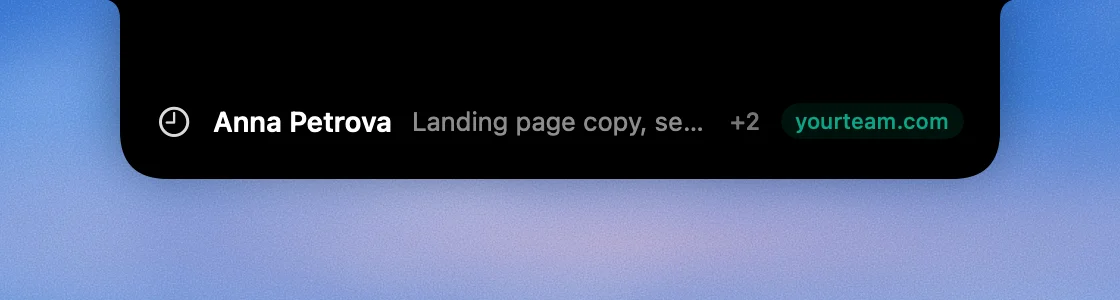
Reply later lives on your Mac, in Roost's own database. Nothing is moved on the server, so Gmail on the web or your phone still shows the letter in the inbox. If Roost was closed at the time, the conversation comes back as soon as you open it.
For your own letters there's the bell beside Send in a compose window: "Remind me if no reply" in 3 days, 1 week or 2 weeks. If nobody else has written in the conversation by then, your letter comes back to the inbox marked "No reply". The Send later picker reads typed times the same way.
Questions
Can you snooze emails in Apple Mail on a Mac?
Yes. It's called Remind Me: Control-click a message (or swipe right with two fingers), click Remind Me, and choose 1 hour, tonight, tomorrow or a date and time.
Does Roost's Reply later work with Gmail and Outlook?
Yes, with every inbox, because it doesn't depend on the provider. The flip side is that it stays on your Mac: the provider's own apps still show the letter.
What keys snooze a conversation in Roost?
H opens the picker, then type a time or press 1 to 4 and Return. With Gmail's keys turned on it's B.
Sources
- Apple, Mail User Guide for macOS 27, "Manage notifications from Mail on Mac" (Use Remind Me to come back to emails later): support.apple.com/guide/mail/manage-notifications-mlhlc8ab2bf1/mac, read 19 November 2026.
- Apple, "Switch to Mail on Mac" (Get reminders): support.apple.com/guide/mail/switch-to-mail-mlhle2e8ce37/mac, read 19 November 2026.
- Apple, "Mark emails to revisit later in Mail on Mac" (Get reminded to follow up on emails with no response): support.apple.com/guide/mail/mark-emails-to-revisit-later-mlhlp1052/mac, read 19 November 2026.
- Roost changelog: roostmail.app/changelog.