The MacBook Neo runs ordinary macOS, so email works on it the way it does on any Mac. Apple’s Mail app is already installed, and adding your address takes a couple of minutes. This guide is written for someone on their first Mac: where to click, what each provider asks for, whether there’s a Gmail or Outlook app, and what’s worth setting on day one.
The short version
- Open System Settings › Internet Accounts › Add Account, type your email address, and follow the sign-in. Your mail then shows up in the Mail app.
- Google makes no Gmail app for any Mac. Microsoft does make Outlook for Mac, and it’s free in the Mac App Store for personal accounts.
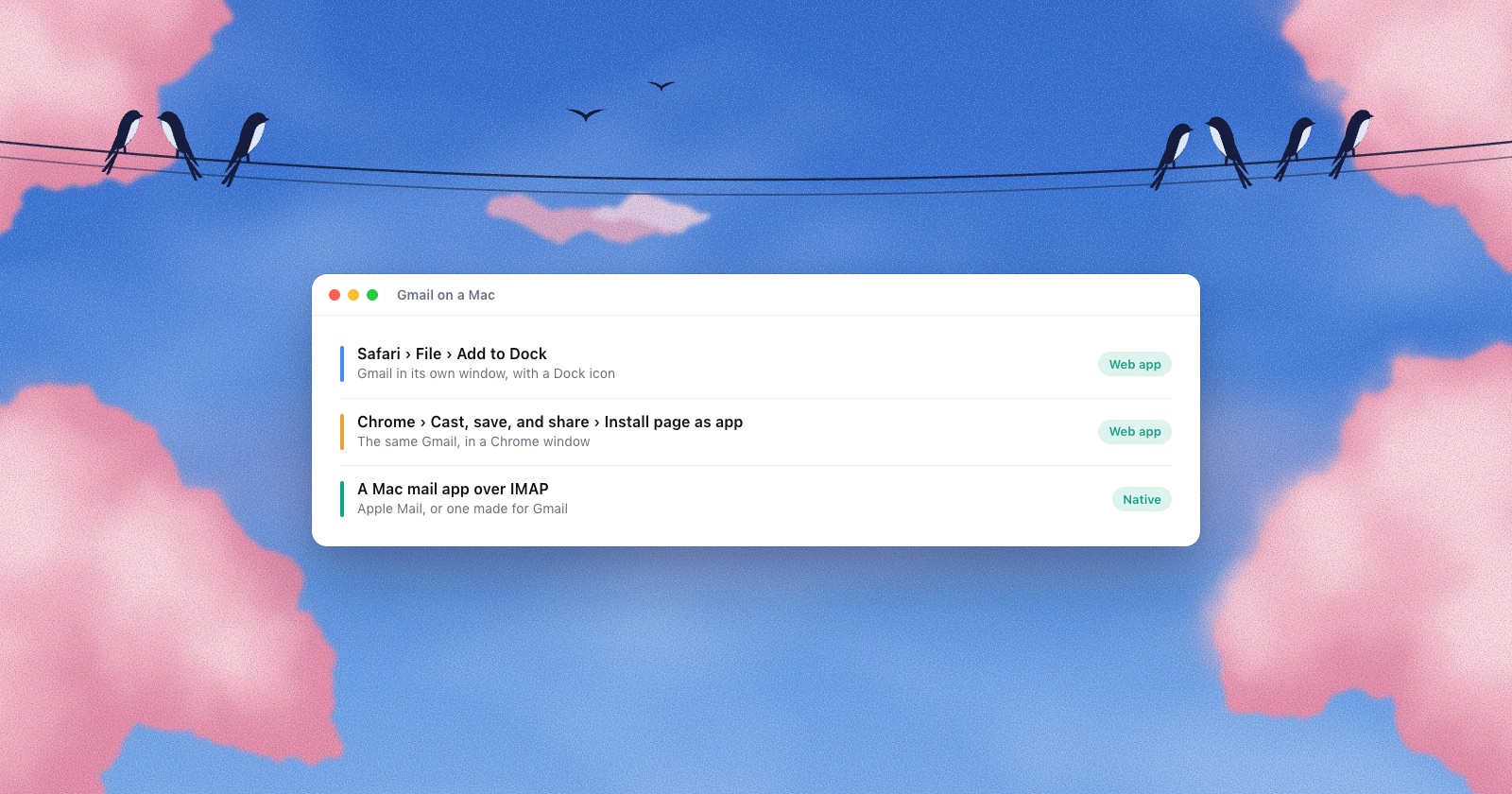
- If you’d rather use the website, Safari’s File › Add to Dock gives Gmail, Outlook.com or Yahoo Mail its own icon and window.
- Other mail apps run on macOS too. The table below lists five with each maker’s own price and requirements.
What the Neo is, for email purposes
Apple announced the MacBook Neo on March 4, 2026, starting at $599. It has an A18 Pro chip, 8GB of memory and a 256GB or 512GB drive, and Apple’s announcement says it comes with macOS Tahoe. Mail is on Apple’s list of built-in apps for it.
There is no special “Neo version” of email. Anything written for Mail on a Mac applies, and if you’ve come from Windows or a Chromebook, the main difference is where the settings live.
1. Add your first account
You need an address that already exists. Apple’s guide says so plainly: you create the account on the provider’s website first, then add it to the Mac.
- Click the Apple menu in the top-left corner of the screen and choose System Settings.
- Click Internet Accounts in the sidebar. You may need to scroll down to find it.
- Click Add Account. Type your email address, or click “choose from a list” and pick your provider.
- Enter your name, password and whatever else it asks for. With the big providers this is their own sign-in page.
- If the account can do more than mail, a dialog asks which apps should use it. Leave Mail switched on.
Now open Mail (the blue envelope icon in the Dock). Your inbox starts filling in.
There’s a second door to the same place. In the Mail app, choose Mail › Add Account from the menu bar at the top of the screen, and you get the same steps. To add a second address later, do either one again.
2. What each provider asks for
Apple has a page that says which name to pick in the list for each kind of address. This is what it says, plus what the providers themselves say.
Gmail
Pick Google. You sign in on Google’s own page, because Gmail, in Google’s words, “no longer supports third-party apps or devices which require you to share your Google username and password.” There’s no switch to turn on in Gmail first: IMAP, the standard that lets mail apps read a mailbox, has been always on for personal accounts since January 2025. The longer version, with a second Gmail account and the settings worth changing, is in how to add Gmail to Mail on a Mac.
Outlook.com, Hotmail, Live, MSN
This one surprises people. For @outlook.com, @hotmail.com, @live.com and @msn.com addresses, Apple’s page says to pick Microsoft Exchange on a Mac, not “Other.” Microsoft requires its modern sign-in (OAuth2) for Outlook.com, so expect a Microsoft sign-in window.
Yahoo and AOL
Pick Yahoo or AOL from the list and sign in. An app that can’t show Yahoo’s sign-in page needs an “app password” instead, a one-off password you generate under Account Security on Yahoo’s site. More on Yahoo’s options in Yahoo Mail on a Mac.
iCloud
iCloud Mail isn’t added through Internet Accounts the first time. Go to System Settings, click your name at the top of the sidebar, then iCloud › Mail, and turn on “Sync this Mac.” If you’ve never had an iCloud address, the Mac walks you through making one.
Work or school email
For a Microsoft 365 or Exchange address, pick Microsoft Exchange. One thing can stop you: Apple’s documentation for IT departments describes a message saying an administrator has to approve Apple’s mail apps first. If you see something like that, it isn’t your Mac. Ask your IT desk, or try Outlook (below).
Any other address
For an address from your internet provider, your own domain or a smaller mail service, choose the “Other” option at the bottom of the list (in Internet Accounts it’s called Add Other Account). Mail may ask for the incoming and outgoing server names. Your provider’s help pages list them; search for its name plus “IMAP settings.”
3. Is there a Gmail app or an Outlook app for the MacBook Neo?
Gmail: no. Google makes Gmail apps for iPhone, iPad and Android and none for macOS, so there’s nothing from Google to download on a Neo or any other Mac. Apps in the Mac App Store with “Gmail” in the name come from other companies. Your choices are Gmail in a browser, Gmail’s website in the Dock, or your Gmail account inside a mail app. I went through all of them in Is there a Gmail app for Mac?
Outlook: yes. Microsoft Outlook is in the Mac App Store, sold by Microsoft Corporation. When I read the listing on November 12, 2026 it said “Free · In-App Purchases,” “Requires macOS 15.0 or later,” and a size of 1.2 GB. The description says it is “now free with your personal email accounts” and names Outlook.com (Hotmail and MSN included), Gmail, Yahoo Mail, iCloud, IMAP and POP alongside Microsoft 365. The free version carries ads; the listing’s wording is “Add a premium subscription to go ad-free,” and the in-app purchases are Microsoft 365 plans.
4. Put webmail in the Dock
If you liked reading mail in a browser tab on your old computer, you can keep doing that and still have an icon to click. Safari can turn a website into what Apple calls a web app. It needs macOS Sonoma 14 or later, and the Neo’s macOS Tahoe is newer than that.
- Open Safari and go to your mail’s website:
mail.google.com,outlook.comormail.yahoo.com. Sign in. - Choose File › Add to Dock from the menu bar, or click the Share button and choose Add to Dock.
- Type a name and click Add.
The web app keeps its own cookies, apart from Safari’s, so you sign in once more inside it. If the site asks to send notifications, answer in the web app’s own window. The red number that then appears on its Dock icon counts unread notifications, which isn’t the same as unread mail.
It’s still a website in a window, and each provider gets its own icon.
5. Mail apps that run on macOS, compared
These are the makers’ own published prices and requirements, read on November 12, 2026. I haven’t tested any of these apps on a MacBook Neo, and that includes my own. I built Roost, the last row. Its stated requirements are Apple silicon and macOS 15 or later. Apple’s announcement calls the Neo’s chip Apple silicon and says it comes with macOS Tahoe, so on paper it fits, but Roost’s own page words the chip requirement as “M1 or newer” and the Neo’s A18 Pro is a different chip family. Until someone has run it on a Neo, treat that as unconfirmed; the three free days are there to find out before paying.
| App | Price | Stated requirements | Good to know |
|---|---|---|---|
| Apple Mail | Included with the Mac | None; it’s part of macOS | Already set up once you add an account |
| Microsoft Outlook | Free with ads; Microsoft 365 plans remove them | macOS 15.0 or later | 1.2 GB download from the Mac App Store |
| Thunderbird | Free | macOS 10.15 or later, Intel or Apple silicon | Downloaded from thunderbird.net, not the App Store |
| Spark | Free plan; Plus $10 a month, Pro $20 a month | macOS 12.0 or later | Yearly prices are $99 and $199 |
| Roost | Free for 3 days, then $29 once for the first 100 copies, $49 after | Apple silicon, macOS 15 or later | Not tested on a Neo. No Roost account; mail is kept on the Mac |
For one or two addresses, Apple Mail is enough for most people and costs nothing. A different app starts to make sense when you have several inboxes at different providers. I compared eleven apps for that case in the best Mac email client for several accounts. If you try Roost, note that Gmail, Yahoo and iCloud are added there with an app password and Outlook with Microsoft’s sign-in; the step-by-step pages show every click.
6. Four settings for the first ten minutes
Notifications
By default you may hear about more mail than you want. In Mail, choose Mail › Settings › General. “New message notifications” decides which mailbox triggers an alert, and “New message sound” sets the sound. To change how the banners look, or to silence Mail completely, go to System Settings › Notifications and pick Mail under Application Notifications.
A signature
Mail › Settings › Signatures. Select the account in the left column, click the Add button under the middle column, name the signature, and type it in the right column. Each account can have its own.
Protect Mail Activity
Many newsletters contain tiny images that tell the sender when you opened the mail. In Mail › Settings › Privacy there’s a checkbox called Protect Mail Activity. With it selected, Apple says “your IP address is hidden from senders and remote content is privately downloaded in the background.” If you deselect it, two separate options appear: hide your IP address, and Block All Remote Content, which shows a banner on each message so you choose whether to load its pictures. What this does and doesn’t stop is in how to block email tracking on a Mac.
Your default mail app
When you click an email link on a web page, the Mac opens its default mail app. To change it, Apple’s steps are: install the other app, open Mail (it needs one account set up, which you can remove afterwards), choose Mail › Settings › General, and pick the app in the “Default email reader” menu.
Questions
How do I set up email on a MacBook Neo?
Open System Settings, click Internet Accounts, click Add Account, and type your email address or choose your provider. Sign in, leave Mail switched on, then open the Mail app. The same steps are under Mail › Add Account.
Does the MacBook Neo come with an email app?
Yes. Mail is on Apple’s list of built-in apps for the MacBook Neo. It works with Gmail, Outlook.com, Yahoo, AOL, iCloud, Exchange and other addresses.
Is there a Gmail app for the MacBook Neo?
No. Google makes no Gmail app for macOS. Use Gmail in Safari or Chrome, add its website to the Dock with File › Add to Dock, or add your Google account to Mail or another mail app.
Can I get Outlook on a MacBook Neo?
Microsoft Outlook is in the Mac App Store. Its listing says it’s free with in-app purchases and requires macOS 15.0 or later. Apple announced the Neo with macOS Tahoe, which is newer. The free version shows ads.
How do I add a second email account?
Repeat the first steps: System Settings › Internet Accounts › Add Account, or Mail › Add Account.
Is 8GB of memory and 256GB of storage enough for email?
Apple lists 8GB of memory on both Neo models and a 256GB or 512GB drive. Mail apps keep copies of your mail on that drive, so a very large mailbox takes space. I can only quote published figures: Thunderbird’s requirements page recommends 512 MB of memory and about 200 MB of disk plus room for mail, and Outlook’s App Store download is 1.2 GB. I haven’t measured any app on a Neo.
Sources
- Apple Newsroom, Say hello to MacBook Neo (March 4, 2026); Apple, MacBook Neo technical specifications
- Apple, Use your internet accounts on Mac and Add and manage email accounts in Mail on Mac
- Apple, Choose the correct email provider in Mail; Create a primary iCloud Mail address; Integrate Apple devices with Microsoft Exchange
- Google, Add Gmail to another email client; Microsoft, POP, IMAP and SMTP settings for Outlook.com; Yahoo, Generate and manage third-party app passwords
- Mac App Store, Microsoft Outlook and Spark; Spark, pricing; Thunderbird, downloads and system requirements
- Apple, Use Safari web apps on Mac
- Apple, Manage notifications in Mail, Create and use email signatures, Protect email privacy, Change the default web browser or email app