Before you start
- Your Gmail address and its normal password, to sign in on Google’s page.
- Your phone, if 2-Step Verification isn’t on yet. Google sends it a code once.
- Roost open on Add your inboxes, with your address typed in.
Why this is safe
- You make the app password on myaccount.google.com, Google’s own site. Roost never sees your Google password.
- Roost keeps the app password in your Mac’s Keychain, the same locked store Safari uses for your passwords. Roost has no server, so it isn’t copied anywhere else.
- You can delete it on Google’s page whenever you like, and Roost loses access straight away.
Step by step
-
Check that 2-Step Verification is on
Google only offers app passwords once 2-Step Verification is on. Open myaccount.google.com/security and look under How you sign in to Google. If it already says On, skip to step 2.
If it says Off, click Turn on 2-Step Verification and follow Google’s screens. It takes about a minute: Google sends your phone a code, you type it in, done.
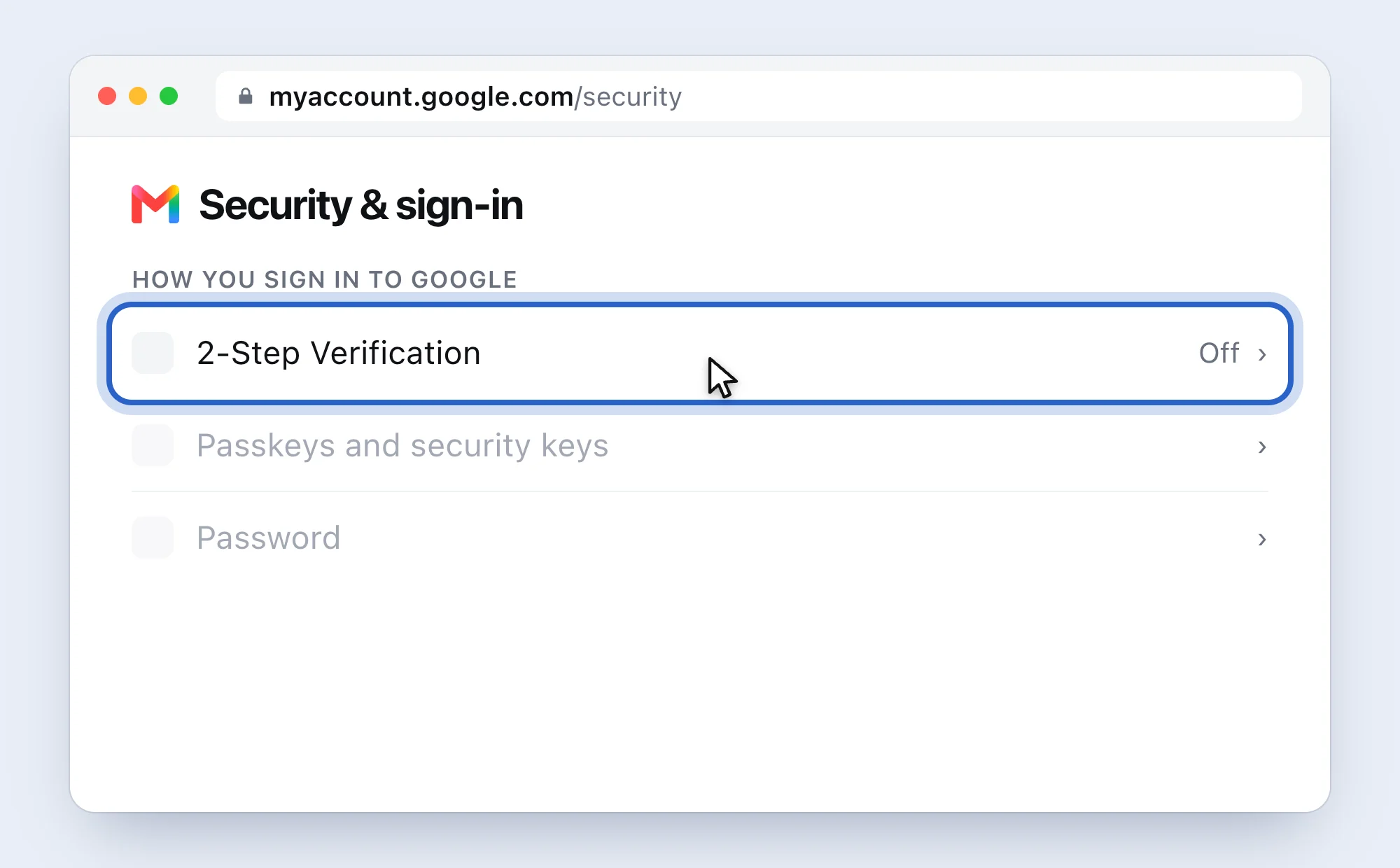
A simplified drawing of Google’s page. The words are Google’s; the page itself looks a little different. -
Open Google’s App passwords page
Click Google Account in Roost’s setup line, or go to myaccount.google.com/apppasswords. Google may ask for your password again. That’s Google asking, on Google’s site, which is fine.
If you have several Google accounts, check the round picture in the top right corner shows the one you’re adding.
-
Type “Roost” and click Create
The name is only a label for you, so you can tell later what this password is for. Any name works.
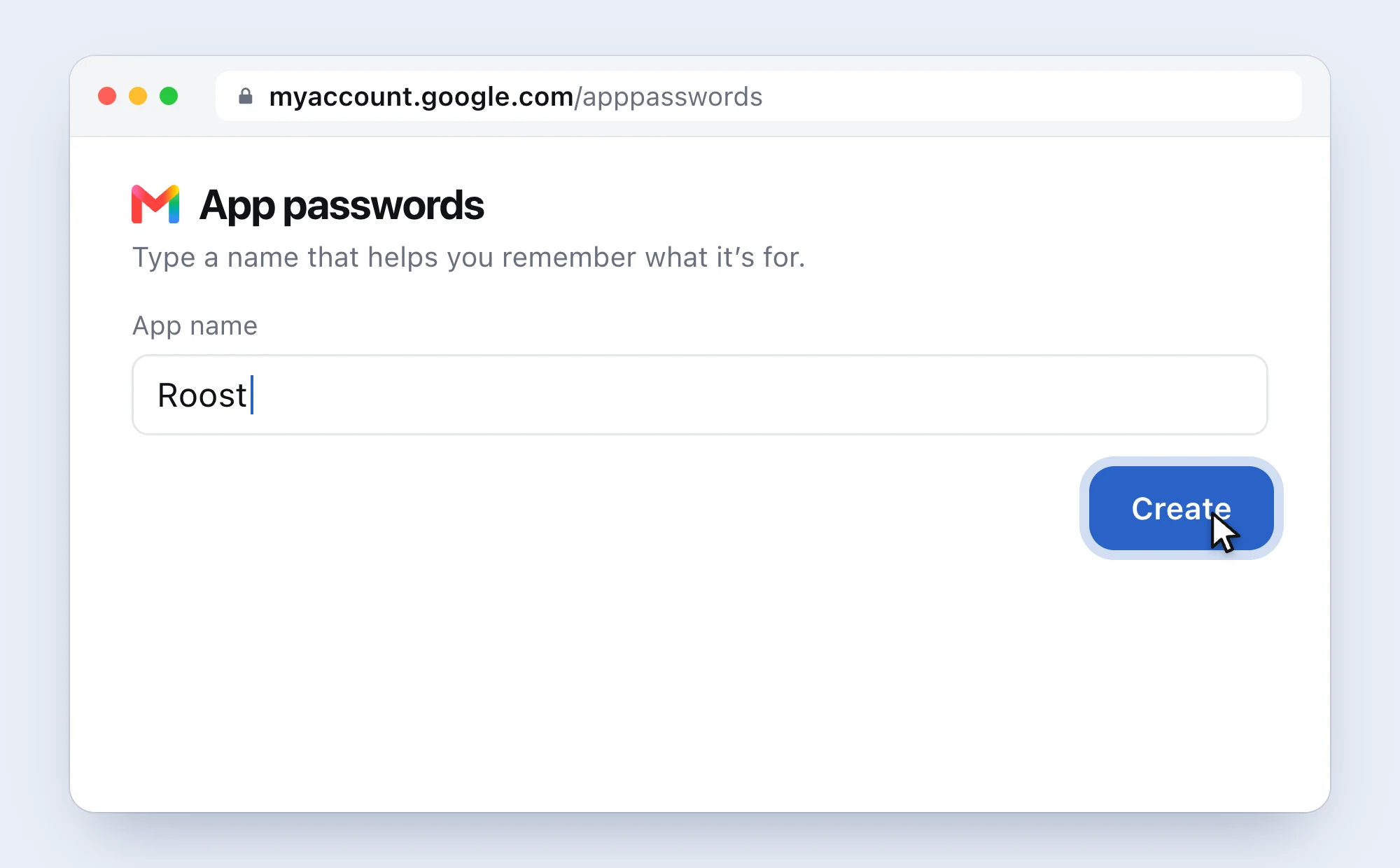
The address bar should say myaccount.google.com. If it says anything else, close the page. -
Copy the 16 letters
Google shows the password in a yellow box. Select it and copy it (⌘ C). The spaces don’t matter.
Google won’t show this password again after you click Done. That’s fine: you don’t need to write it down. If you lose it, you just make a new one.
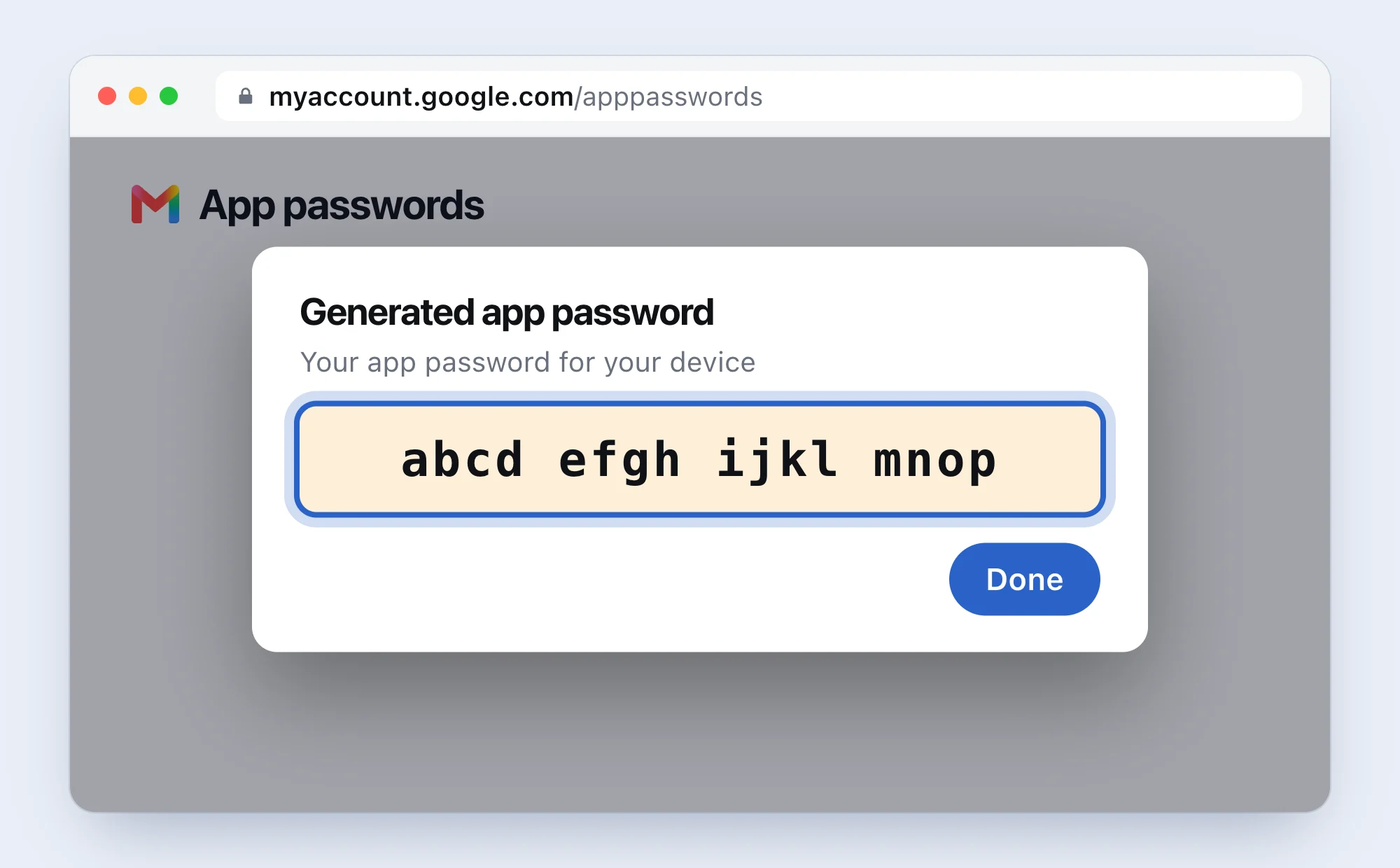
A made-up example. Yours will be different letters. -
Paste it into Roost and click Connect
Back in Roost, click the App password field, paste (⌘ V) and press Return. Roost checks it with Gmail, then starts bringing in your last 90 days of mail.
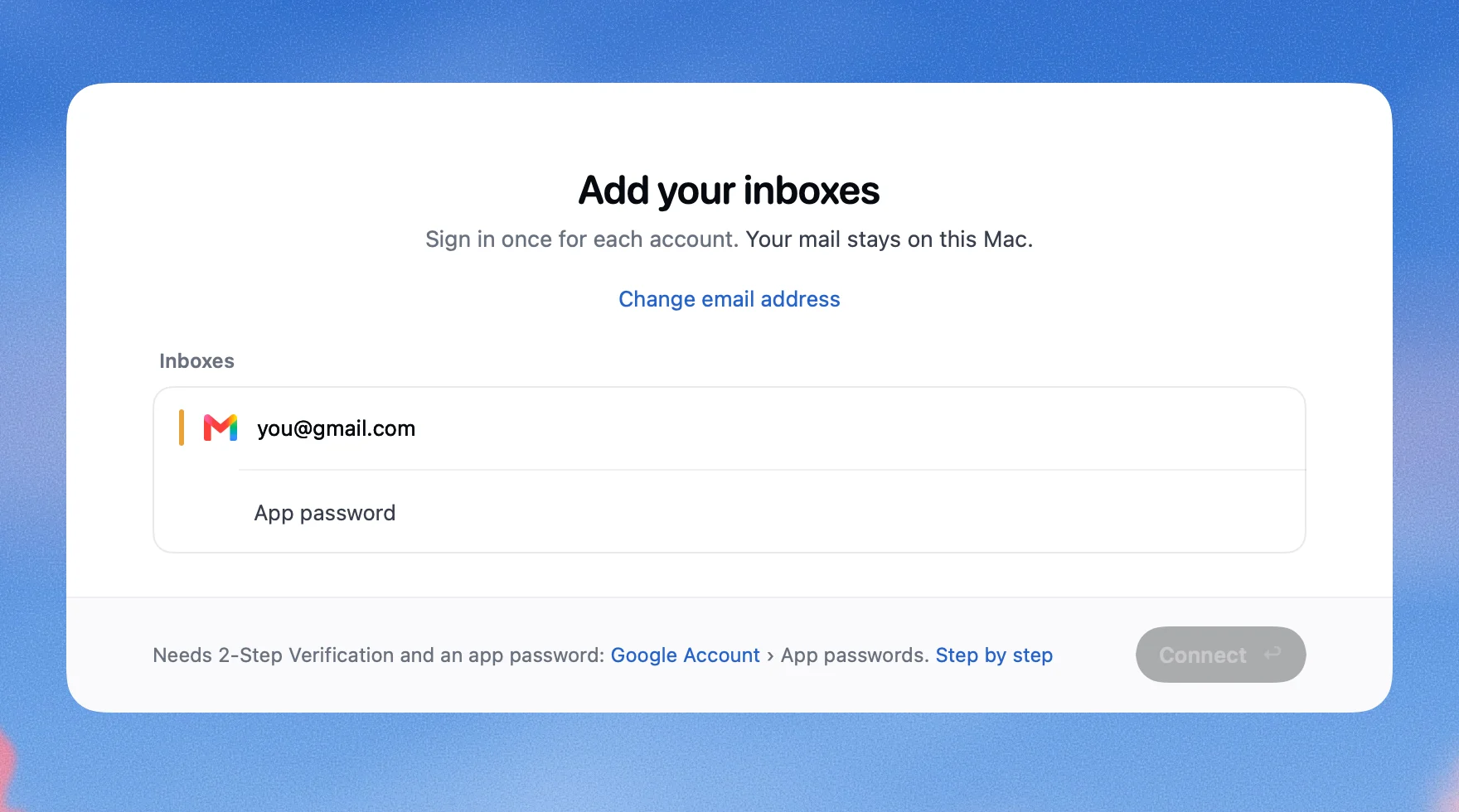
This is Roost. The line at the bottom links to Google’s page and back here.


That’s it. Your Gmail shows up in the sidebar with its own colour, and a tick appears on the Google tile.
If it doesn’t work
- There’s no “App passwords” page, or Google says the setting isn’t available
- Google lists three reasons: 2-Step Verification is off, it’s set up only with security keys, or the account has Advanced Protection. A work or school Gmail (an address on your company’s own domain) may also hide it. Turn on 2-Step Verification with your phone, or ask whoever runs your company’s Google account.
- Roost says
Google needs an app password, not your usual one.
- You typed your normal Gmail password. Gmail won’t accept it in mail apps. Make an app password (steps 2 to 4) and paste that instead.
- Roost says
That password didn’t work.
- Usually a letter got lost while copying. Make a new app password, copy it with ⌘ C instead of typing it, and paste again. If you have several Google accounts, check you made it in the right one.
- It worked for weeks, then stopped
- Did you change your Google password? Google cancels every app password when you do. Make a new one, then in Roost open Settings, pick the inbox and click Sign in again.
- A work or school Gmail says mail apps are off
- Your company’s Google admin decides whether mail apps may connect. Roost tells you when that’s the reason. Only the admin can change it, under Gmail’s End User Access settings.
Questions people ask
Is an app password the same as my Gmail password?
No. It’s a second, separate password that Google makes for one app. Your normal password stays the same and keeps working everywhere. Google even advises making a different app password for each app or device.
Google’s page says app passwords are less secure. Should I worry?
Google prefers apps that offer “Sign in with Google”. Roost doesn’t offer that for Gmail today, so an app password is the way Google lets it in. The care it needs is the care any password needs: whoever has it can read your mail. Roost keeps it in your Mac’s Keychain and only ever gives it to Gmail’s own mail servers. If you stop using Roost, delete it on Google’s page.
Why do I need 2-Step Verification?
That’s Google’s rule: app passwords only exist on accounts with 2-Step Verification. It also makes your account much harder to break into, so it’s worth having anyway. Roost itself never asks you for a code.
Will I have to type a code from my phone every time?
No. Google asks for a code when you sign in to Google in a browser on a new device. Roost uses the app password, so it connects on its own every time, even after a restart.
Can Roost see my Google password, contacts or Drive?
Roost never sees your Google password: you make the app password on Google’s site and only paste the result. Roost connects to Gmail’s mail servers (imap.gmail.com and smtp.gmail.com) and nothing else at Google. The full list of what Roost talks to is on Where your mail goes.
Where is my mail kept?
On your Mac, in Roost’s own folder. Roost has no server and no account to sign up for. Your mail also stays in Gmail as always: Roost doesn’t move it or delete it unless you ask.
What happens if I change my Google password?
Google cancels all your app passwords. Make a new one and use Settings › Sign in again in Roost.
I have several Gmail accounts. Do I repeat this?
Yes, once per account, each with its own app password. Switch accounts with the round picture in the top right corner of Google’s page before you click Create.
How do I remove Roost’s access later?
Two places. In Roost: Settings, pick the inbox, Remove Inbox… deletes the mail Roost saved on your Mac and the password in your Keychain. At Google: open App passwords, find “Roost” and remove it. After that, nothing can use that password again.
Sources
Google Account Help: Sign in with app passwords, Turn on 2-Step Verification. Gmail Help: Add Gmail to another email client. Google Workspace Admin Help: Turn POP and IMAP on or off for users. Checked 5 November 2026.
 iCloud MailAn app-specific password
 OutlookSign in with Microsoft
 Yahoo MailAn app password
 Zoho MailIMAP on, sometimes an app password
 Yandex MailMail apps on, then an app password
 AOL MailAn app password
 Any other addressUsually your mail password