Before you start
- Your Yandex address and password, to sign in on Yandex’s pages.
- A little patience. Yandex says a new app password starts working 2 to 3 hours after you make it.
- If you’ve never opened this mailbox on mail.yandex.com, open it there once first.
Why this is safe
- The switch and the app password are made on mail.yandex.com and id.yandex.com, Yandex’s own sites. Roost never sees your Yandex password.
- Roost keeps the app password in your Mac’s Keychain and has no server to copy it to.
- You can delete it in Yandex ID at any time, and Roost loses access at once.
Step by step
-
Allow mail apps in Yandex Mail
Open mail.yandex.com/#setup/client (in Russian: Настройки › Почтовые программы). Tick From the imap.yandex.com server via IMAP (С сервера imap.yandex.ru по протоколу IMAP), check App passwords and OAuth tokens (Пароли приложений и OAuth-токены) is ticked too, and save.
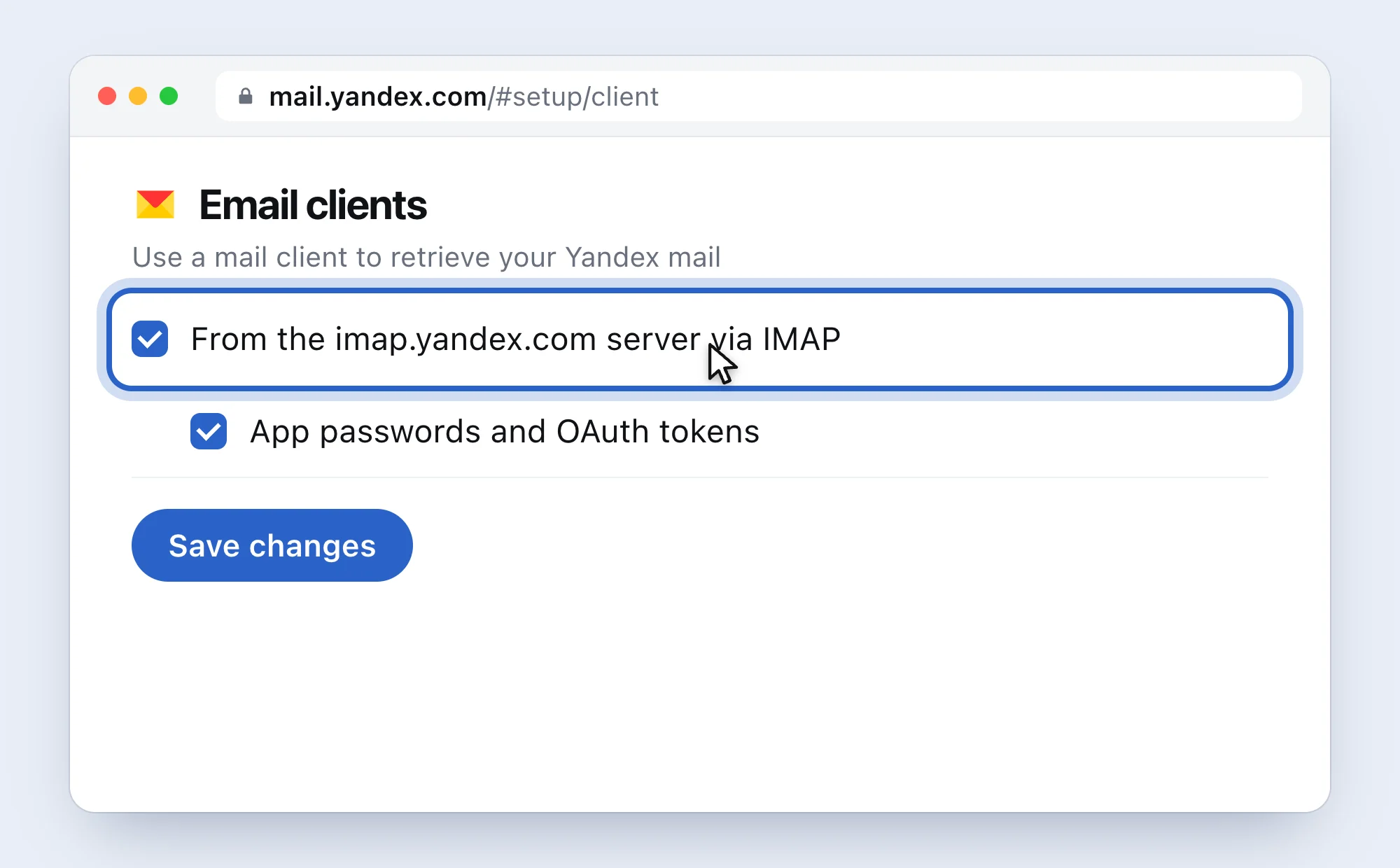
A simplified drawing of Yandex’s page, with Yandex’s English words. -
Open App passwords in Yandex ID
Click Yandex ID in Roost’s setup line, or go to id.yandex.com/security/app-passwords. On the page it’s Safety › Access to your data › App passwords (Безопасность › Доступ к вашим данным › Пароли приложений).
-
Choose Mail and name it “Roost”
Under Create an app password (Создать пароль приложения), pick Mail (Почта), type Roost and click Next (Далее).
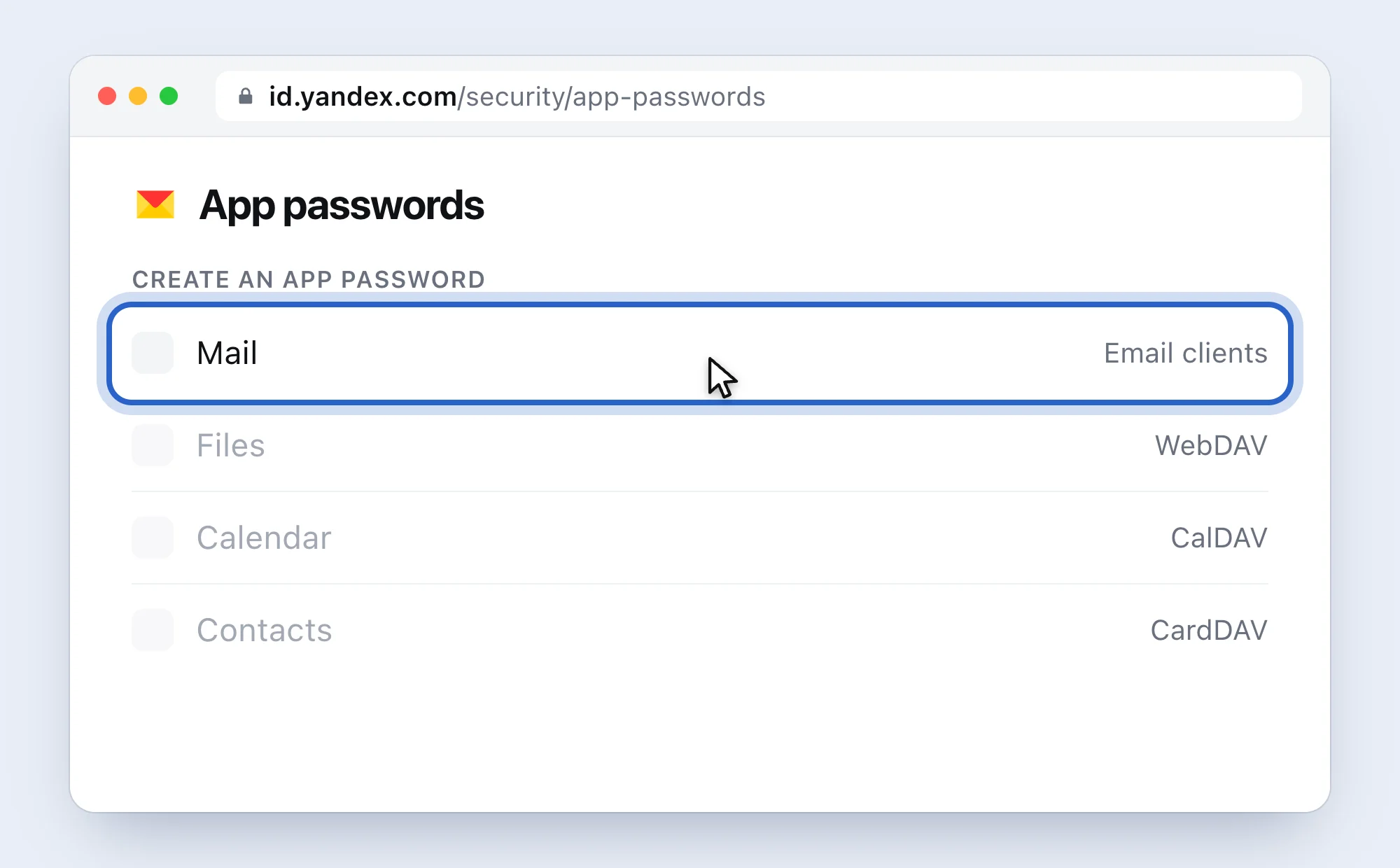
Pick Mail: a password made for Files or Calendar won’t open your mail. -
Copy the password
Yandex shows it once, in a new window. Copy it (⌘ C). If you close the window too early, delete it and make another.
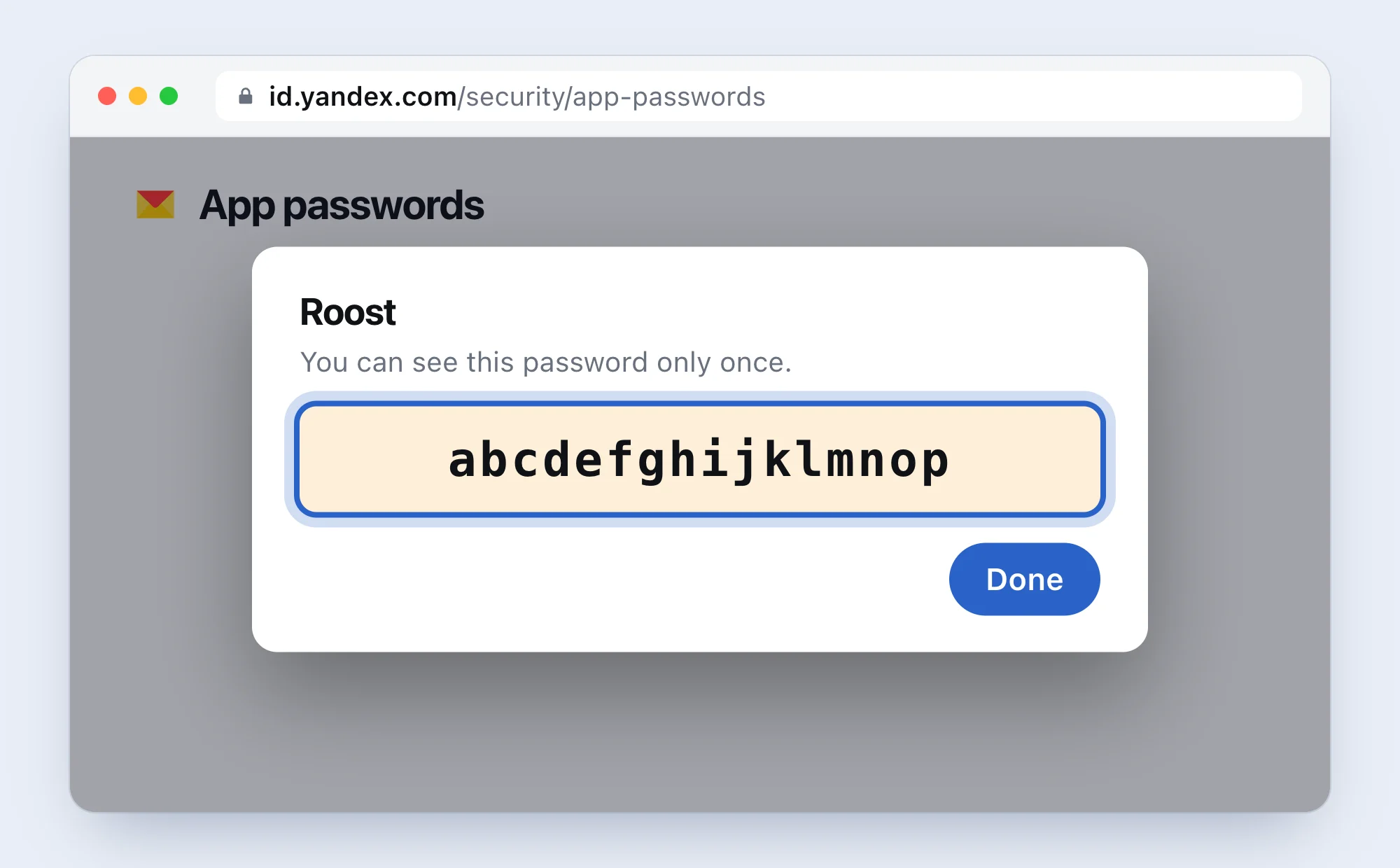
A made-up example. Yours will be different. -
Paste it into Roost
Paste it in App password and press Return. If Roost says Yandex didn’t accept it, the password is probably just too new: try again in two or three hours.
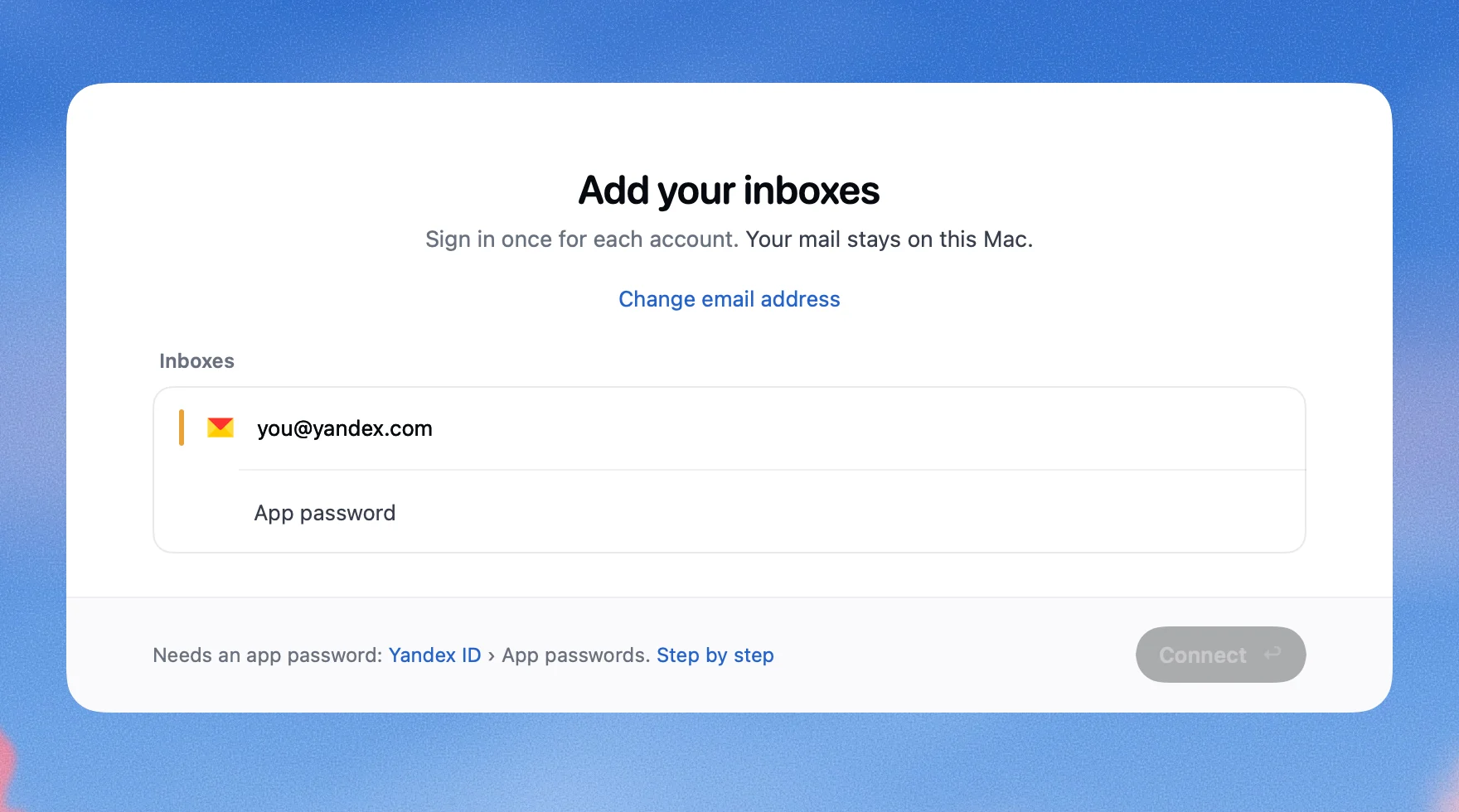
This is Roost.


If it doesn’t work
- Roost says
Yandex didn’t accept the login.
- Yandex gives mail apps the same answer for three different things. In order: the app password is less than 2 to 3 hours old (wait), mail apps are off (step 1), or the password was for something other than Mail (make a new one for Mail).
- Roost says
Mail apps are off in Yandex.
- Do step 1, save, then click Connect again.
- A company mailbox (Yandex 360 for Business) still won’t connect
- Your organisation’s admin has to allow IMAP for everyone first, in the organisation’s mail settings. Each person also has to open their mailbox on the web once.
Questions people ask
Why does it take hours?
That’s how Yandex works: its help says a new app password becomes active in 2 to 3 hours. Nothing to fix on your side.
Do I need two-factor authentication?
No. Yandex lets anyone make app passwords.
Does it work with yandex.ru and ya.ru addresses?
Yes. The steps are the same; the Russian site shows the Russian names in brackets above.
Can Roost see my Yandex Disk or other services?
No. A Mail app password only opens mail, and Roost only talks to Yandex’s mail servers. See Where your mail goes.
How do I remove Roost’s access later?
In Roost: Settings, pick the inbox, Remove Inbox…. At Yandex: Safety › App passwords, pick Roost, Delete password (Удалить пароль).
Sources
Yandex ID Help: App passwords (на русском). Yandex Mail Help: Setting up mail clients, Problems with mail clients. Yandex 360 for Business: Почтовые программы. Checked 5 November 2026.
 Gmail2-Step Verification, then an app password
 iCloud MailAn app-specific password
 OutlookSign in with Microsoft
 Yahoo MailAn app password
 Zoho MailIMAP on, sometimes an app password
 AOL MailAn app password
 Any other addressUsually your mail password