Before you start
- Your Outlook, Hotmail, Live or work address, and its password.
- Whatever Microsoft usually asks for when you sign in, like a code in the Authenticator app.
Why this is safe
- You sign in on login.live.com or login.microsoftonline.com, Microsoft’s own pages, in your browser. Roost never sees your Microsoft password.
- Microsoft gives Roost a key that opens only your mail. Roost keeps it in your Mac’s Keychain and has no server.
- You can take the key back on Microsoft’s side whenever you like.
Step by step
-
Type your address in Roost and click Sign in with Microsoft
In Add your inboxes, click the Outlook tile, type your address and press Return. Your browser opens Microsoft’s sign-in page.
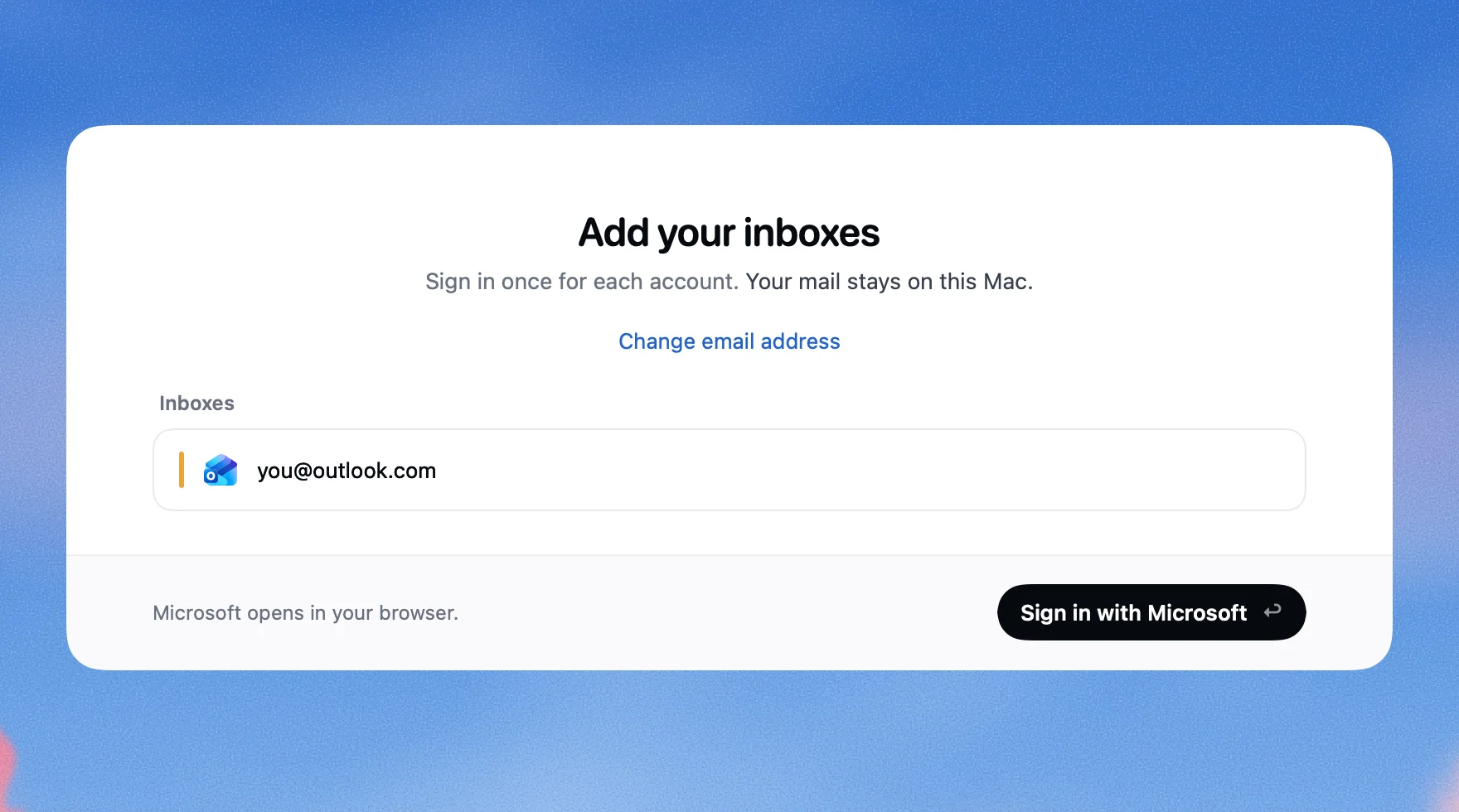
This is Roost. -
Sign in as you always do
Check the address bar says login.live.com (personal accounts) or login.microsoftonline.com (work and school). Then sign in the usual way.
-
Say Yes to the permissions
Microsoft lists what Roost asks for: reading and changing your mail (so Done and Delete work), sending mail as you (so replies go out), and keeping that access (so you don’t sign in every day). Nothing else: no contacts, files or calendar.
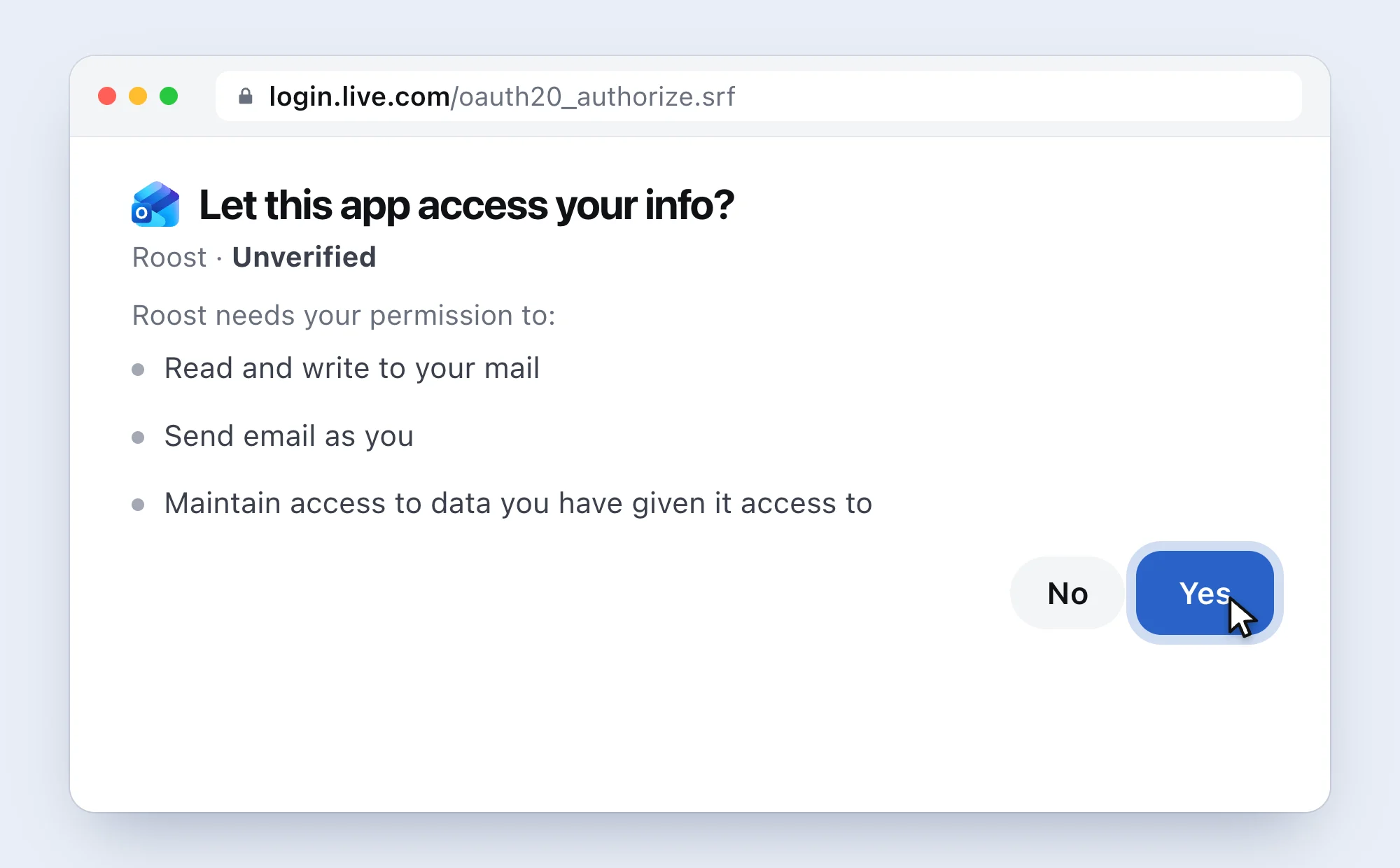
A simplified drawing. Microsoft’s page looks a little different and its words can vary by account. The page says Unverified next to Roost. That means Roost hasn’t yet finished Microsoft’s paperwork that puts a company name there, not that something is wrong. You’re signing in on Microsoft’s own page either way.
-
Come back to Roost
The browser hands you back to Roost, and your Outlook mail starts coming in.


If it doesn’t work
- A work account says it needs an admin’s permission
- Many companies only let staff approve apps their IT team has checked. Microsoft’s message says Roost “needs permission to access resources in your organization that only an admin can grant”. If the page offers a request button, send it. Otherwise forward this page to your IT admin. Once they approve Roost, sign in again.
- The browser didn’t come back to Roost
- Switch to Roost and click Sign in with Microsoft again. If your browser asked whether to open Roost, click Allow or Open.
- Roost asks you to sign in again weeks later
- Microsoft sometimes ends sign-ins, for example after a password change. Open Settings, pick the inbox and click Sign in again.
Questions people ask
Do I need an app password or IMAP for Outlook?
No. Roost reads and sends Outlook mail through Microsoft’s own mail service (Microsoft Graph), so there’s nothing to switch on and no extra password.
Why does it say “Unverified”?
Microsoft shows a company name only after a separate check of the business behind the app. Roost hasn’t finished it yet. Your password still goes only to Microsoft, on Microsoft’s page.
Does it work with Hotmail, Live and MSN addresses?
Yes, they’re all Outlook.com accounts.
Does it work with Microsoft 365 at work?
Yes, if your company lets you approve apps yourself. If not, your IT admin can approve Roost once for everyone.
Are attachments limited?
Yes: about 3 MB of files per letter for Outlook, a limit of Microsoft’s service. Roost tells you before sending if a letter is too big.
How do I remove Roost’s access later?
In Roost: Settings, pick the inbox, Remove Inbox… deletes the mail Roost saved and its key in your Keychain. At Microsoft, work or school accounts: myapps.microsoft.com, the … next to Roost, Manage your application, Revoke Permissions. Personal accounts: Microsoft lists connected apps at account.live.com/consent/Manage, where you can remove Roost.
Sources
Microsoft Learn: Consent experience for applications, Microsoft Graph permissions, Unexpected error when performing consent, Publisher verification. Microsoft Support: Edit or revoke application permissions in the My Apps portal. Checked 5 November 2026.
 Gmail2-Step Verification, then an app password
 iCloud MailAn app-specific password
 Yahoo MailAn app password
 Zoho MailIMAP on, sometimes an app password
 Yandex MailMail apps on, then an app password
 AOL MailAn app password
 Any other addressUsually your mail password