Before you start
- Your full email address and the password you use for it in webmail.
- For Fastmail, Proton or GMX/mail.com with two-factor on: an app password from your host (see the table below).
Why this is safe
- Roost sends your password only to your own mail host’s servers, over an encrypted connection.
- It keeps the password in your Mac’s Keychain and has no server of its own.
- Settings › Remove Inbox… deletes it from your Mac again.
Step by step
-
Click Other address and type your address
Roost looks up your domain’s mail servers on its own, the way Thunderbird does. For most hosts that’s all.
-
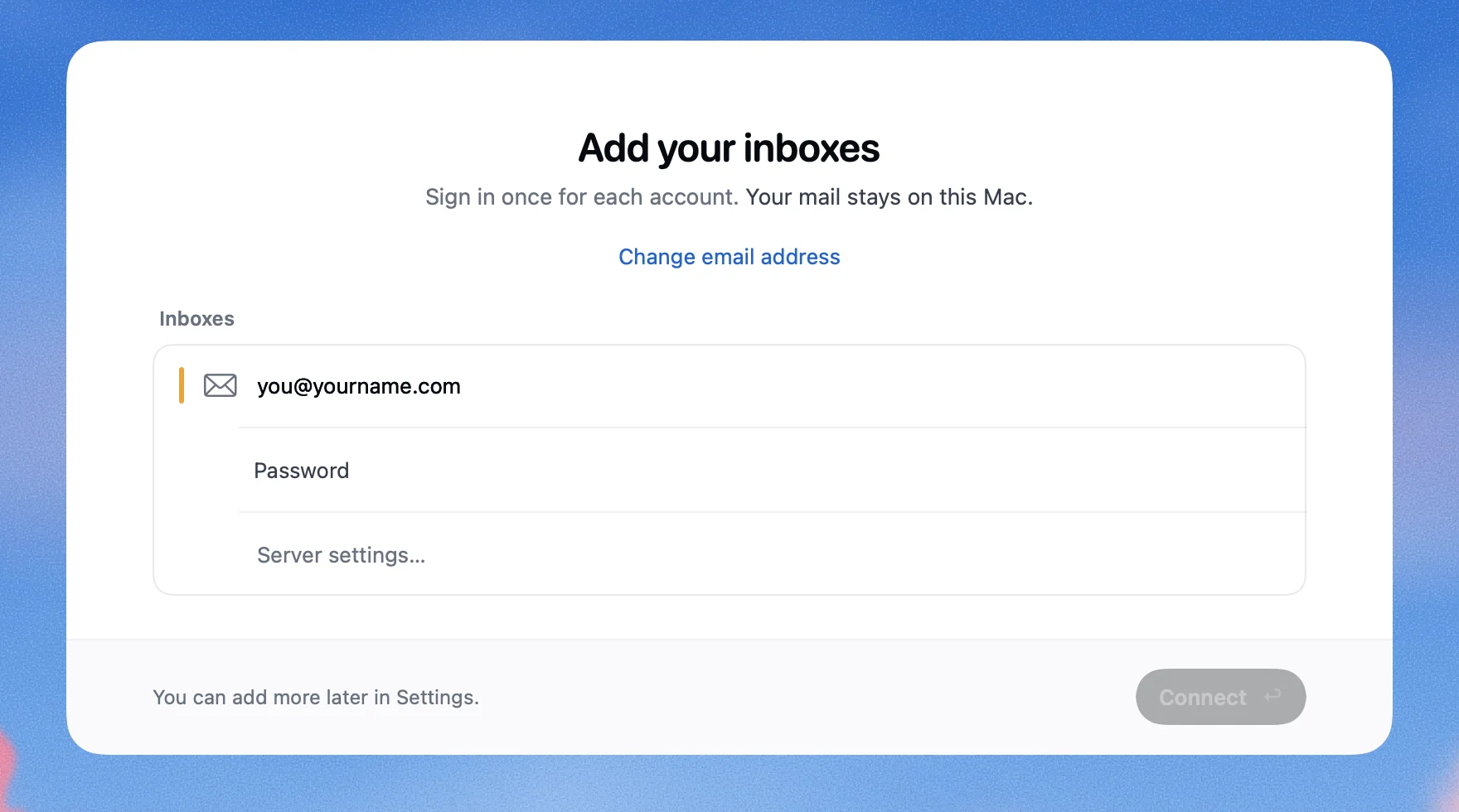
Type your password and click Connect
Use the password you sign in to webmail with, unless your host is in the table below.
When Roost can’t find the servers on its own, it shows these fields. -
Only if Roost asks: fill in the servers
Your host’s help pages list them, usually under “IMAP settings”. The username is nearly always your full address. Incoming is IMAP on port 993, outgoing is SMTP on 465 or 587.

Hosts with their own rules
| Host | Password to use | Worth knowing |
|---|---|---|
| Fastmail | An app password (Settings › Privacy & Security › Manage app passwords and access) | The Basic plan has no mail-app access at all. |
| GMX, mail.com | Your password; with two-factor on, an application-specific password | Turn on Enable access to this account via POP3 and IMAP in Settings first. It switches itself off after long disuse, and when you turn on two-factor. mail.com needs Premium for IMAP. |
| GoDaddy Professional Email | Your mailbox password | Servers: imap.secureserver.net, smtpout.secureserver.net. |
| Namecheap Private Email | Your mailbox password | Server: mail.privateemail.com for both. |
| Microsoft 365 (also from GoDaddy) | None: use the Outlook tile | Sign in with Microsoft. |
| Proton Mail | Not tested with Roost yet | Needs the Proton Mail Bridge app on a paid plan. |
If it doesn’t work
- Roost says
That password didn’t work.
- Sign in to your webmail with the same password to rule out a typo. If that works, your host probably wants an app password or has mail apps switched off (see the table).
- Roost says it can’t reach a server
- The server name is likely wrong. Copy it from your host’s “IMAP settings” help page.
- Roost says
Mail comes in, but sending was refused.
- Some hosts use a different login for sending. Open the server fields and fill in Outgoing login. If only sending can’t be reached, Roost offers Add anyway so you can read mail now.
Questions people ask
Does Roost support POP?
No, Roost uses IMAP, so your mail stays on your host’s server too and matches what you see on your phone.
Is my password sent to Roost?
No. Roost has no server. The password goes from your Mac straight to your mail host, encrypted.
How do I remove it later?
In Roost: Settings, pick the inbox, Remove Inbox…. That deletes the mail Roost saved and the password from your Keychain. Nothing changes on your host.
My host isn’t here. Can you help?
Write to [email protected] with the host’s name (not your password). I’ll look it up and add it here.
Sources
Fastmail: App passwords. GMX: Turn on POP3 and IMAP, Application-specific passwords. mail.com: POP3 and IMAP. GoDaddy: IMAP settings for Professional Email. Namecheap: Private Email IMAP/SMTP details. Proton: Proton Mail Bridge. Checked 5 November 2026.
 Gmail2-Step Verification, then an app password
 iCloud MailAn app-specific password
 OutlookSign in with Microsoft
 Yahoo MailAn app password
 Zoho MailIMAP on, sometimes an app password
 Yandex MailMail apps on, then an app password
 AOL MailAn app password