Before you start
- Your Apple Account email and password, to sign in on Apple’s page.
- An iPhone, iPad or Mac signed in to the same Apple Account. Apple shows it a code when you sign in.
- Roost open on Add your inboxes, with your iCloud address typed in.
Why this is safe
- You make the password on account.apple.com, Apple’s own site. Roost never sees your Apple Account password.
- An app-specific password only opens your iCloud Mail in one app. Roost keeps it in your Mac’s Keychain and has no server to copy it to.
- You can remove it on Apple’s page at any time, and Roost loses access at once.
Step by step
-
Sign in at account.apple.com
Click Apple Account in Roost’s setup line, or open account.apple.com in Safari. Sign in with your Apple Account. Your iPhone or Mac shows a six-digit code: type it on the page.
-
Open App-Specific Passwords
In Sign-In and Security, click App-Specific Passwords.
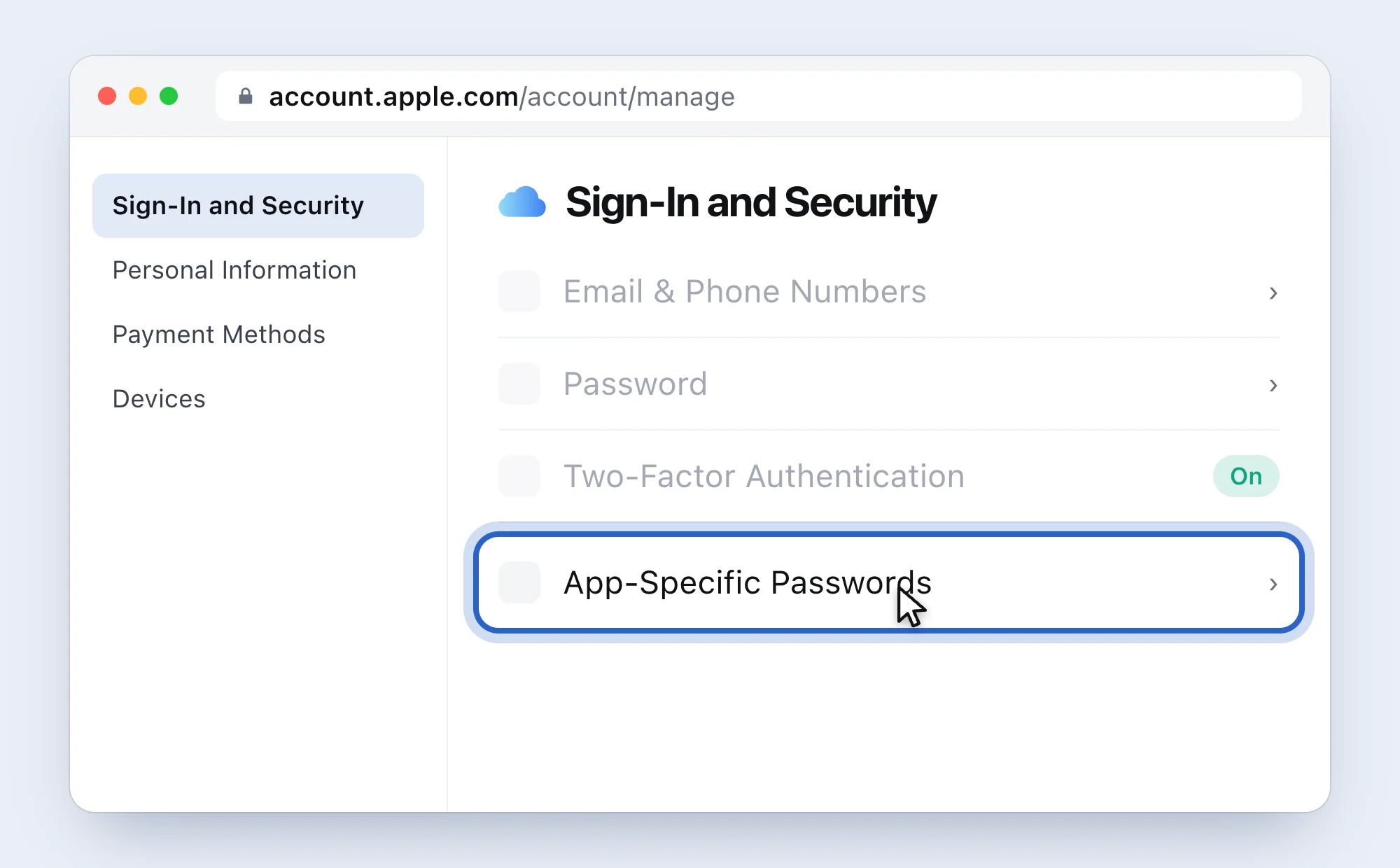
A simplified drawing of Apple’s page, with Apple’s words. Not there? Two-factor authentication is off. Apple only offers app-specific passwords with it on. On your Mac: System Settings, your name, Sign-In & Security, then turn on two-factor authentication.
-
Generate one named “Roost”
Click Generate an app-specific password, type Roost and follow the screen. Apple may ask for your Apple Account password once more.
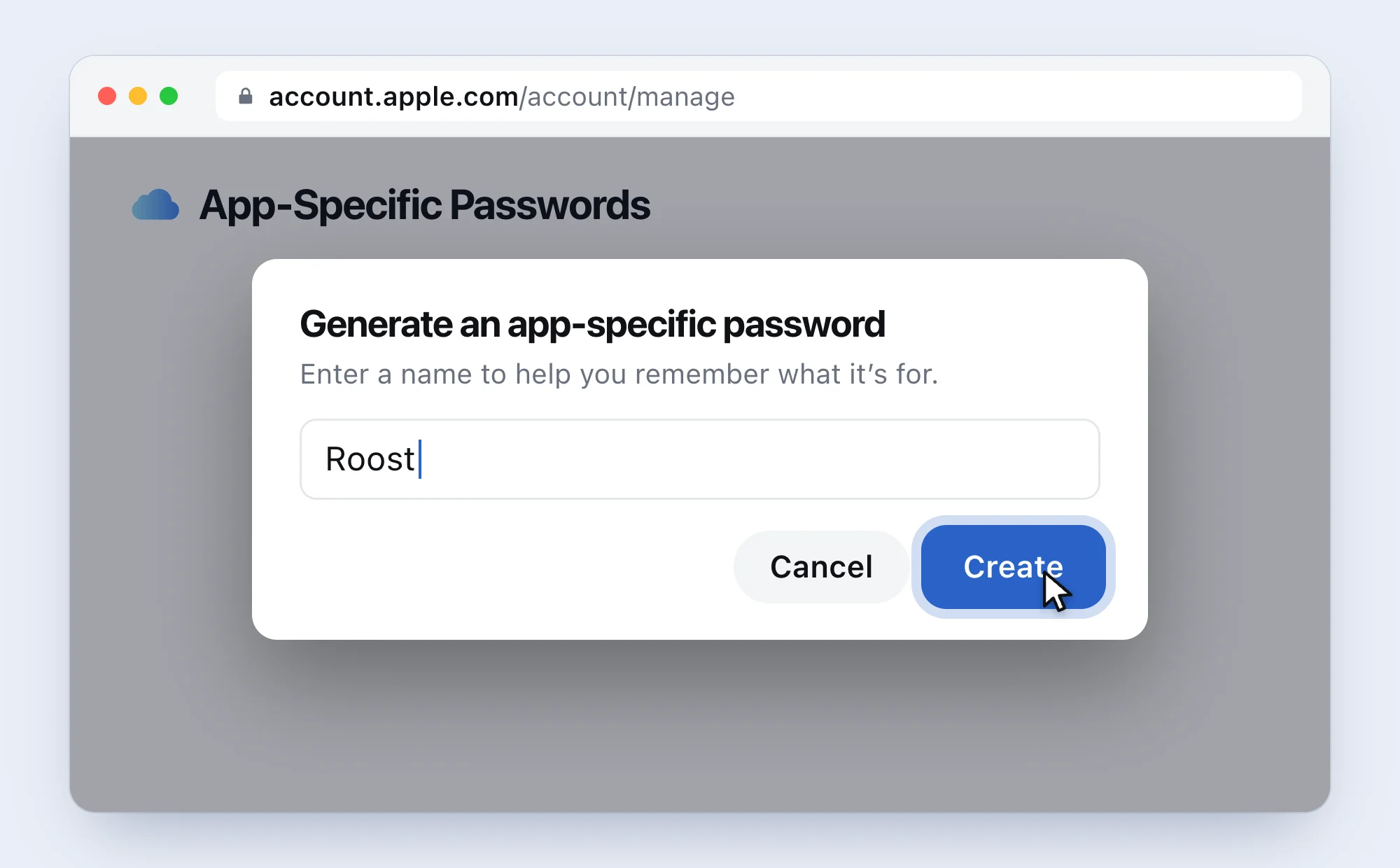
The name is only for you, so you can tell later what each password is for. -
Copy the password
Apple shows a password of letters in four groups. Copy it (⌘ C). No need to write it down: if you lose it, you make a new one.
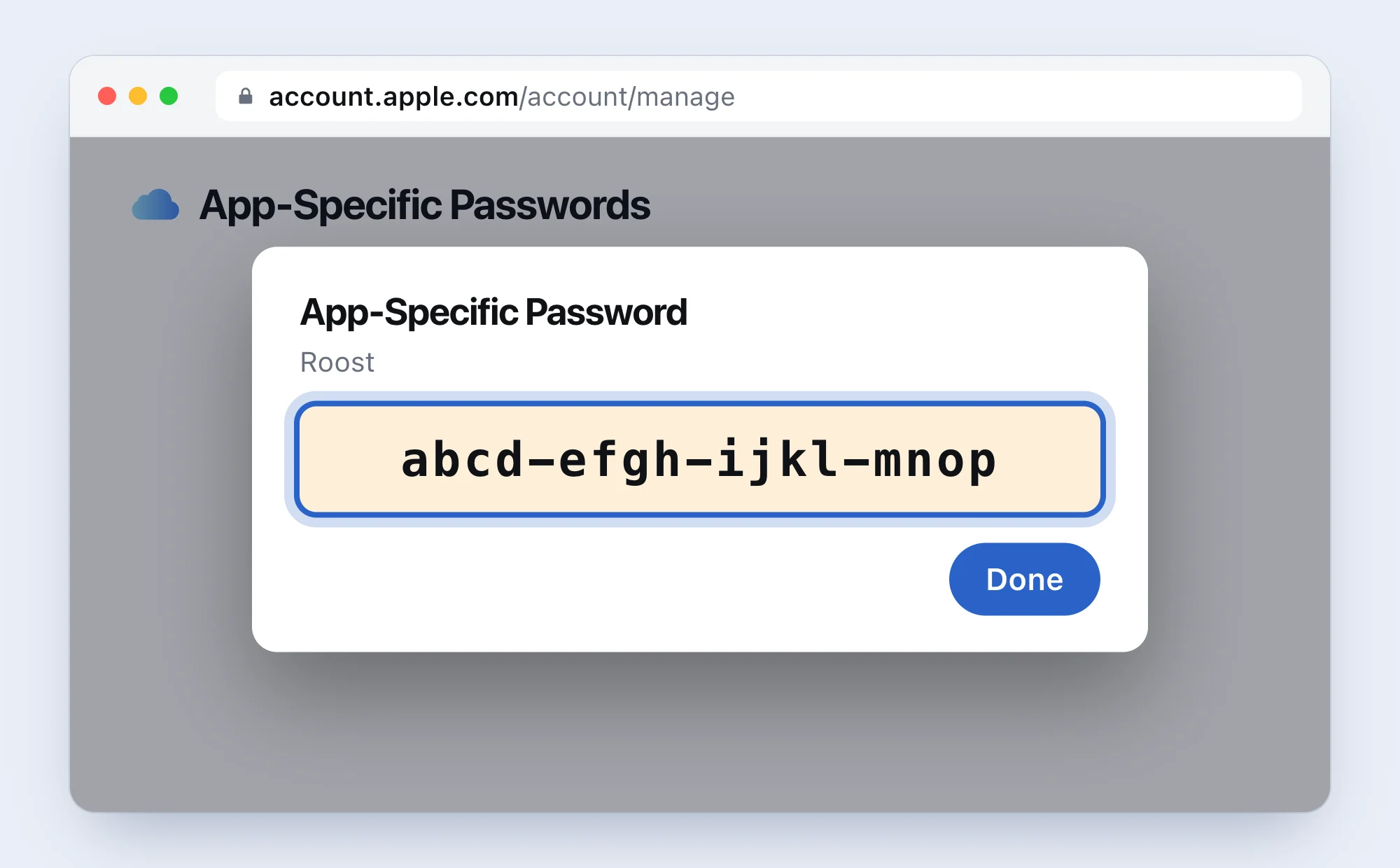
A made-up example. Yours will be different. -
Paste it into Roost and click Connect
Back in Roost, paste it in App password and press Return. Roost checks it with iCloud and brings in your last 90 days of mail.
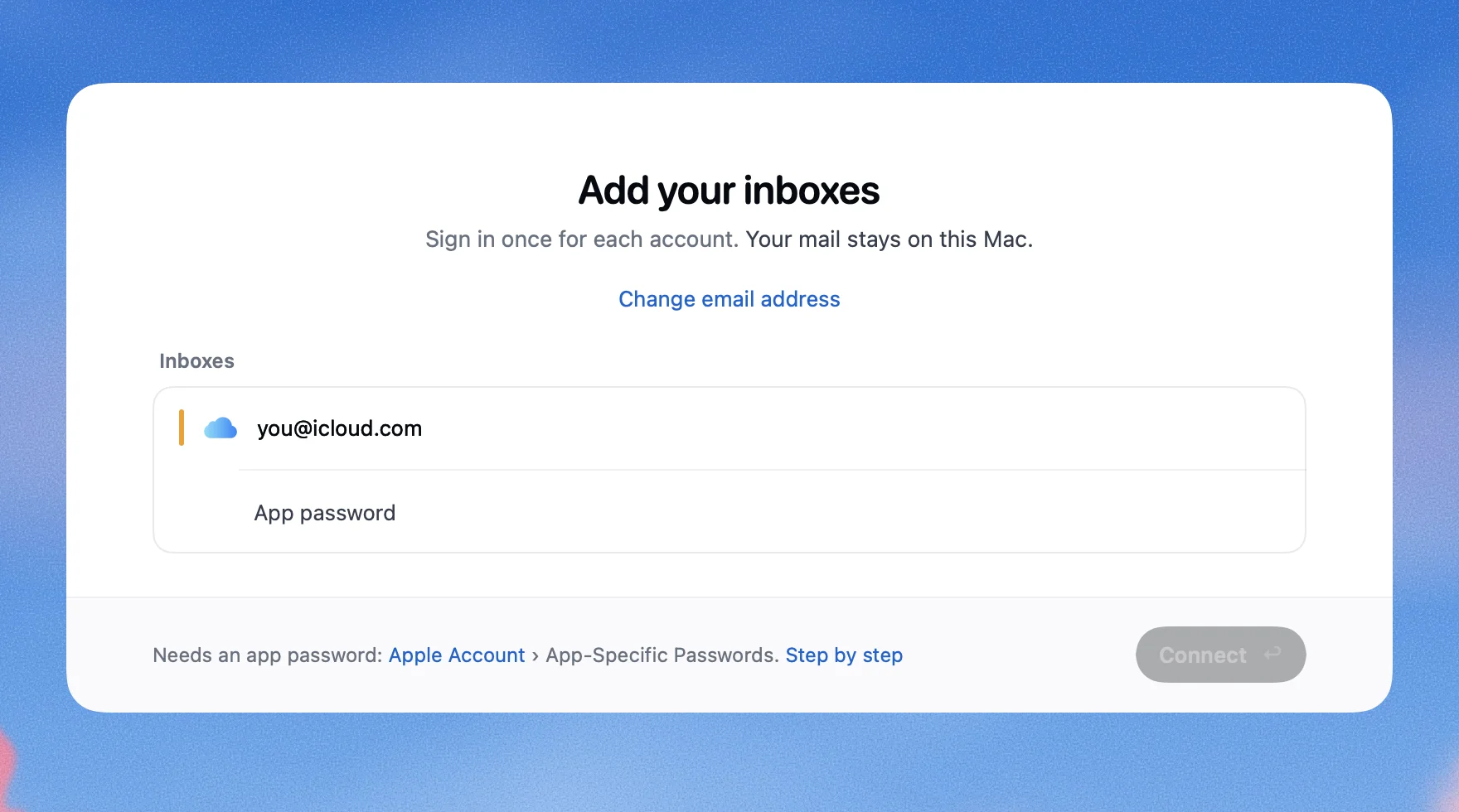
This is Roost.


If your iCloud address is on your own domain
With iCloud+ you can have mail at your own domain, like [email protected]. Roost sees that and asks for one more thing: your @icloud.com address, which is what iCloud signs you in with. You’ll find it on an iPhone in Settings, your name, iCloud, iCloud Mail. Apple doesn’t document other mail apps for own domains, so this is what has worked for people, not an Apple promise.

If it doesn’t work
- Roost says
iCloud needs an app-specific password, not your Apple Account password.
- You typed the password you sign in to Apple with. iCloud won’t take it in other mail apps. Make an app-specific password (steps 1 to 4) and paste that.
- There’s no App-Specific Passwords option
- Two-factor authentication is off. Turn it on (step 2), then look again.
- The password is right but it still fails
- Check that iCloud Mail is turned on and you have an @icloud.com address. On a Mac: System Settings, your name, iCloud, Mail. If Apple offers to create an address, you didn’t have one yet. Your Apple Account can be a Gmail address while your mail lives at @icloud.com.
- It worked, then stopped
- Did you change or reset your Apple Account password? Apple removes every app-specific password when you do. Make a new one, then in Roost open Settings, pick the inbox and click Sign in again.
Questions people ask
Is this my Apple Account password?
No. It’s a separate password Apple makes for one app. Your Apple Account password stays the same and is still what you use on your iPhone and Mac.
Why can’t I just “Sign in with Apple”?
Apple has started testing a sign-in for mail apps, but only with a few apps so far. Roost isn’t one of them, so app-specific passwords are the way Apple lets Roost in today.
Do I need two-factor authentication?
Yes, Apple requires it for app-specific passwords. Most Apple Accounts made in recent years already have it on. Roost itself never asks for a code.
Will Roost ask for a code every time?
No. You type the code once, on Apple’s page. Roost then connects with the app-specific password on its own.
Does it work with @me.com and @mac.com?
Yes. They’re the same iCloud Mail, and the steps are the same.
Can Roost see my photos or iCloud Drive?
No. Roost connects only to iCloud’s mail servers (imap.mail.me.com and smtp.mail.me.com). Everything Roost talks to is listed on Where your mail goes.
How many app-specific passwords can I have?
Apple allows 25 at a time. One for Roost is enough, even if you use Roost on two Macs.
How do I remove Roost’s access later?
In Roost: Settings, pick the inbox, Remove Inbox… deletes the mail Roost saved and the password in your Keychain. At Apple: account.apple.com, Sign-In and Security, App-Specific Passwords, and remove “Roost”.
Sources
Apple Support: Sign in to apps with your Apple Account using app-specific passwords, Two-factor authentication for Apple Account, iCloud Mail server settings for other email client apps, Authorize apps with your Apple Account, Set up iCloud Mail, Custom Email Domain. Checked 5 November 2026.
 Gmail2-Step Verification, then an app password
 OutlookSign in with Microsoft
 Yahoo MailAn app password
 Zoho MailIMAP on, sometimes an app password
 Yandex MailMail apps on, then an app password
 AOL MailAn app password
 Any other addressUsually your mail password